PDF Creation Checklist
Before creating a PDF and after export, work through the steps below to verify that your document is ready for publication. Addressing these items in the source document before creating the PDF will reduce the amount of remediation required in Adobe Acrobat.
Before Creating Your PDF
Complete all of the following in Microsoft Word before using File > Save As > PDF.
Document Properties
- Document title is set: Go to File > Info and enter a descriptive title in the Title field in the Properties panel. The title should describe the content of the document — not the filename.
- Document language is set: Go to Review > Language > Set Proofing Language and confirm the correct language is selected for the document.
Content Review
- All comments are dismissed: Go to Review > Delete > Delete All Comments in Document. Comments left in the document may export as annotations in the PDF that are difficult or impossible to remove.
- All images have alt text or are marked as decorative: Right-click each image and select Edit Alt Text to verify. Images that do not convey information should have the Mark as decorative checkbox checked.
- Heading structure is correct: Open the Navigation Pane (View > Navigation Pane > Headings) and verify that the heading hierarchy is logical — no skipped levels, and the document title or top-level topic is tagged as Heading 1.
- Table header rows are set to repeat: For any table that spans multiple pages, right-click the header row, select Table Properties > Row, and confirm Repeat as header row at the top of each page is checked.
- Built-in list styles are used: Confirm that all lists use Word's built-in list formatting rather than manual hyphens, asterisks, or tab-indented text.
Accessibility Checker
- Microsoft Accessibility Checker has been run: Go to Review > Check Accessibility and address all failures before proceeding. Warnings should be reviewed and resolved where possible.
Creating Your PDF
- Go to File > Save As and select PDF as the file format
- Click Options and confirm Document structure tags for accessibility is checked
- Save the file
After Creating Your PDF
Complete the following in Adobe Acrobat Pro after the PDF has been created.
Document Properties
- Document title displays in the title bar: Go to File > Document Properties > Initial View and confirm Show is set to Document Title. If the title bar shows the filename instead, set the title at File > Document Properties > Description > Title.
Accessibility Verification
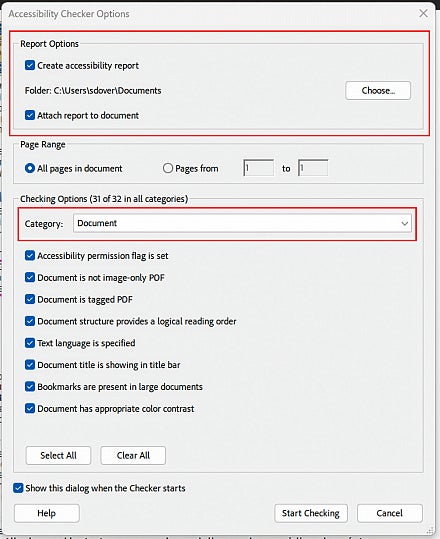
Run Accessibility checker in Adobe Acrobat All Tools > Prepare For Accessibility > Check For Accessibility. Choose Document from the category dropdown (generally this is the default setting), and choose all options in the resulting list of checkbox items if not checked already.
Make sure the option to attach the report to your document is selected.
- Run CommonLook: Go to Menu > Plugins > CommonLook > CommonLook PDF Validator, select WCAG 2.1 AA, and click Full. Filter results to failures and address each one.
- Verify reading order: Open the Order panel and confirm that numbered content regions follow the intended reading sequence. Correct any out-of-sequence content in the Tags panel.
- Verify table header scope: Open the Reading Order tool and access the Table Editor for each data table. Confirm that header cells are marked as Header Cells with Column or Row scope assigned.
- Verify headers and footers are artifacted: Open the Tags panel and confirm that page header and footer content does not appear as tagged elements in the document tree. If header or footer content appears, right-click each content item and select Create Artifact > Page Artifact.