Field Labels, Tooltips, and Tab Order
Field Tooltips and Accessible Names
Every form field must have an accessible name — the text announced by screen readers when a user tabs to the field. In Acrobat, the accessible name is set in the Tooltip field in the field's General properties.
Setting Tooltips and Field Names
- Right-click the form field and select Properties
- In the General tab:
- Enter the accessible name for the field in the Name field
- Enter the tooltip text in the Tooltip field. For text based fields, the Tooltip should provide instructions to the user about the field - like "Enter your first name", or "Enter your ID number". For someone navigating the form using only the form fields, the tooltip is important to provide context for the information being requested in the form field.
- Click Close
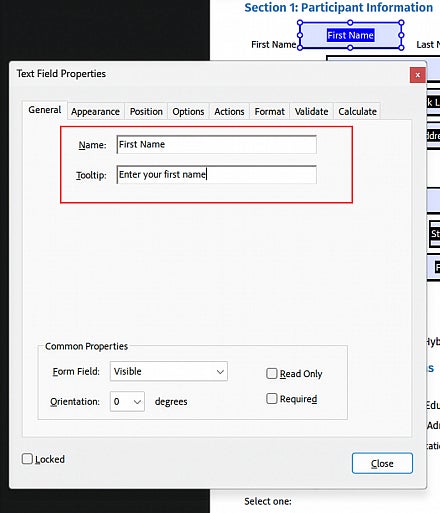
The tooltip must contain the visible label text of the field itself, exactly as it appears on the form. This is required under Web Content Accessibility Guidelines (WCAG) 2.1 Success Criterion 2.5.3 Label in Name. For a text field labeled "Email Address," the tooltip must include "Email Address." Capitalization and punctuation don't matter. The label text is a minimum, not a limit: the tooltip can, and often should, include additional information where it makes the field clearer, such as "Email Address, used for confirmation messages." As a best practice, put the label text first and the added information after it.
Grouped fields: In a group of checkboxes or radio buttons, each option's visible label is its own text, such as "Monday" or "Yes." The long question above the group is the group's label, not each option's. Each tooltip should combine the option's text with a few keywords from the question, for example "Monday, meeting days." The keywords tell screen reader users which question the option answers, and you don't need to repeat the whole question in every tooltip.
Standalone fields: If a field has no group, so that its only label is a long question or statement, the tooltip must contain that full text. If a label is too long to repeat comfortably, shorten the visible label on the form instead, so the two can match.
Repeated Row Tables
For forms with repeated row tables — such as a form collecting multiple past employers — each field's accessible name must be unique while still containing the visible label text. Append a row identifier after the label:
- "Employer Name - Entry 1"
- "Employer Name - Entry 2"
- "Employer Name - Entry 3"
Place the row identifier before the label text ("Entry 1 - Employer Name"), which is best practice.
Common Personal Information Fields
For fields collecting common personal information — name, address, phone number, email, date of birth — use clear, standard labels that match the purpose of the field. This is required under 1.3.5 Identify Input Purpose and helps assistive technologies that auto-populate personal information fields.
Setting Required Fields
To mark a field as required:
- Open the Form Field Pane, Tools -> Accessibility -> Prepare A Form
- Right-click the field and select Properties
- In the General tab, check Required
Required fields present a specific accessibility challenge for screen reader users. People using assistive technology can navigate a form in two ways — reading through all content word by word, or navigating directly between form fields. When navigating by form fields, only the field's accessible name (tooltip) is announced — surrounding text, including asterisks and any explanatory notes, is skipped entirely.
This means that a required indicator relying on a visual asterisk and a note at the top of the form ("Fields marked with * are required") will not reach screen reader users who navigate by form fields — which is a common navigation method.
The more reliable approach is to include the word "required" directly in the field label and in the field's tooltip:
- Field label: "First Name (required)"
- Tooltip: "First Name (required)"
This ensures the required status is communicated regardless of how the user navigates the form. A visual asterisk and/or color can still be included for sighted users, but it should not be the only indicator of required status.
Validation messages: When a user submits a form with a required field left blank, Acrobat displays a validation message. Verify that this message is announced correctly by testing with a screen reader. This behavior is addressed by 4.1.3 Status Messages, which requires that status updates be announced to screen reader users without requiring focus to move to the message.
Tab Order
Tab order determines the sequence in which keyboard users and screen reader users move through form fields. It should follow the logical reading order of the form — typically top to bottom, left to right, matching the visual layout.
Setting Tab Order
Work in this order:
Run the automatic field detection
Check for missing fields and add them
Set the tab order, then
Tag the fields.
The Fields panel controls the tab order. Start by checking the order of the fields listed in the panel. If it doesn't match the form, reorder the fields manually by dragging and dropping until the order is correct. This is the most reliable method.
Tab order using one of the pre-built options can only be applied to the document, not to smaller selections of specific fields.
The tab order button opens a menu with these options:
- Order tabs by structure: follows the document's structure order.
- Order tabs by row: moves from left to right, then down to the next row.
- Order tabs by column: moves from top to bottom, then to the next column.
- Order tabs manually: lets you drag and drop fields within the Fields panel.
- Order tabs unspecified: uses the default page properties order.
- Show tab numbers: displays the numerical order of the form fields on the page.
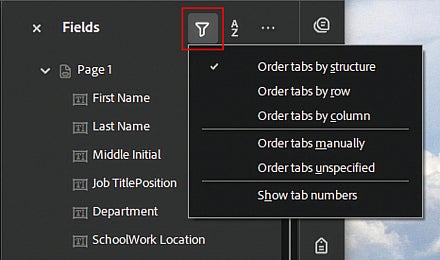
If too many fields are out of order to fix by hand: you can have Acrobat re-sort them:
- Select all of the fields in the Fields panel.
- Select the tab order button and choose Order tabs by column.
- Select all of the fields again.
- Select the tab order button and choose Order tabs by structure.
- Check that the fields are now in the correct order, and reorder any that aren't by hand.
Fields added later: Any field you add after the order is set is placed at the end of the tab order, so check the order again every time you add one. The automatic field detection can't be run a second time on a form that already has fields unless you delete them all first, so adding fields by hand and then re-checking the order is the normal way to fix gaps.
What the Fields panel order does and doesn't do: the order in the Fields panel affects only how users tab between fields. It does not change the tags in the file. Setting the tab order here does not replace checking the order of the form field tags in the tag tree. Always do both. See Verifying Tab Order below.
Verifying Tab Order
The most effective way to verify tab order is to navigate the tag tree directly using the arrow keys on the keyboard. Open the Tags panel, select the first tag in the tree, and use the arrow keys to move through the structure. This lets you follow the exact sequence a screen reader will use and identify any fields that appear out of order before testing with a live user. If your content contains any section or article tags, expand them as you go. Collapsed tags hide the elements inside them, so the order inside can't be checked until they are open.
Check the order visually as you move through the tree. Each time you select a tag, Acrobat highlights the matching element in the document. Watch that highlight as you step through, and confirm it moves through the page in the order you expect, with each label followed by its field. Note any place where the highlight jumps ahead, goes back, or lands somewhere unexpected, because those are the spots to fix.
Additionally, verify that the form fields listed in the Fields panel match the order in which they appear in the document. The Fields panel lists all form fields in the sequence Acrobat will tab through them — if the order in the panel does not match the visual layout of the form, drag fields into the correct position in the panel.
Test the final tab order by pressing Tab repeatedly through the form and confirming that fields are reached in a logical sequence.