Creating Form Fields in Acrobat
Creating form fields in Acrobat is the step that transforms a static PDF into an interactive form. After exporting the form skeleton from Word, the Prepare Form tool detects visual field indicators and places interactive fields automatically — but auto-detection rarely catches everything correctly. This page walks through running Prepare Form, reviewing and correcting detected fields, and choosing the right field type for each input.
A walkthrough of the complete workflow for making PDF form fields accessible in Acrobat — from running Prepare Form and reviewing detected fields through adding tooltips, setting tab order, tagging fields, and placing form tags in the correct position in the tag tree.
Additional Topics in this video:
- Field Names and Tooltips
- Tab (Reading) Order of Form Fields
- Field Validation for Form Fields
- Tagging Form Fields in the Tags Tree
The tools and steps shown in this video reflect a specific version of Adobe Acrobat Pro. Menu locations, panel names, and interface elements may look slightly different depending on which version is installed on your workstation. If a tool or option shown in the video does not match what you see, contact the Communications office for assistance.
Running the Prepare Form Tool
After exporting the PDF, run Acrobat's Prepare Form tool to auto-detect and place form fields:
- Open the PDF in Adobe Acrobat Pro
Go to All Tools > Prepare a Form

Acrobat will then provide an options page to allow you to choose the file that form detection will be run on (the current file is the default), and other options for the creation process. Once you are ready to create the form, click Create Form
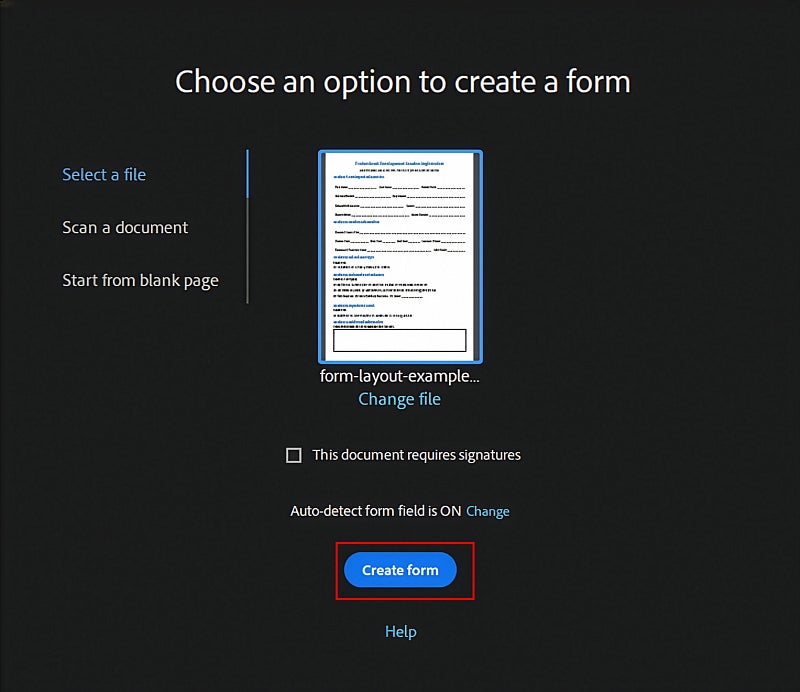
Note: Please leave the "This document requires signatures" checkbox unchecked when creating your form - selecting this feature creates an Adobe Sign document, which is not covered in this guide. If your forms need to make use of a digital signature, please contact Communications to walk through how to integrate signatues in your form.
- Acrobat will scan the document and place form fields where it detects the visual indicators described above
- Review the auto-detected fields to identify any fields that were missed or created in error during the auto detection process. Troubleshooting methods for either case are described below.
What to Expect From Auto-Detection
Auto-detection is a starting point, not a finished product. Expect to:
- Find fields that were correctly detected and need only minor property adjustments
- Find fields that were missed entirely and need to be added manually
- Fields whose field type was incorrectly detected, and need to be replaced with the correct field type.
- Find fields that were incorrectly detected (wrong type, wrong location, or extra fields where none belong) and can be deleted.
Work through the document systematically — do not assume auto-detection is complete or correct without reviewing every field.
Troubleshooting: Fields Were Skipped
If the tool missed fields that you expected it to detect, the most likely causes are:
- The visual indicator did not match what the tool recognizes (e.g., a dotted line instead of a solid underline for a text field)
- The indicator was too close to or overlapping with another element
- The indicator was in a text box or table cell that was not recognized correctly
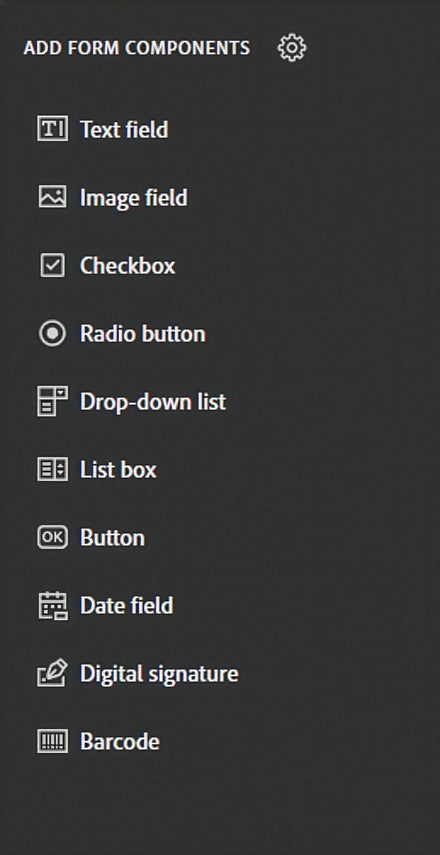
Add missed fields manually: in the Prepare Form toolbar, select the appropriate field type and click to place it on the document. Once placed, you may move and resize the field to best address the requirements for the form.
Troubleshooting: Extra Fields Were Created
If the tool created fields where none were intended, the visual content on the page contained something the tool interpreted as a field indicator — a horizontal rule used as a decorative divider, a bordered text box used for a callout, or similar elements.
Delete unwanted fields by selecting them and pressing Delete. To prevent this in future documents, avoid using design elements that mimic field indicators in non-form areas of the document.
Checkbox vs. Radio Buttons
The field type must match the field's intended function. This matters for accessibility — not just visual convention.
Does the question allow more than one answer, or is it a simple yes/no or acknowledgement (checked/unchecked)? → Use a checkbox
Does the question require exactly one answer from a set of options? → Use a radio button
This distinction affects how assistive technology communicates the field to users. A radio button group announces mutual exclusivity — selecting one option deselects the others, and screen readers inform the user of this before they make a selection. A checkbox does not carry this announcement. If a checkbox is scripted to behave like a radio button, the behavior will surprise screen reader users who receive no warning that selecting one option will deselect another.
Setting Up Checkbox Groups
For multi-checkbox questions where any combination of options can be selected, each checkbox operates independently. No additional grouping configuration is required.
For single-choice questions presented as checkboxes (where only one can be selected at a time), you must create a checkbox group:
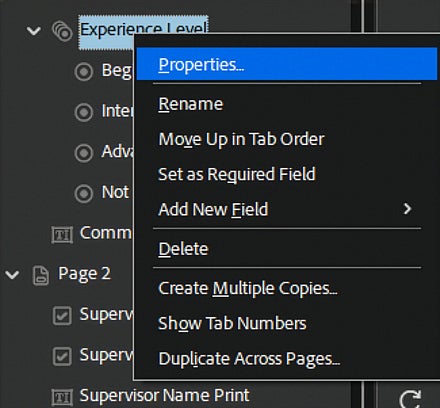
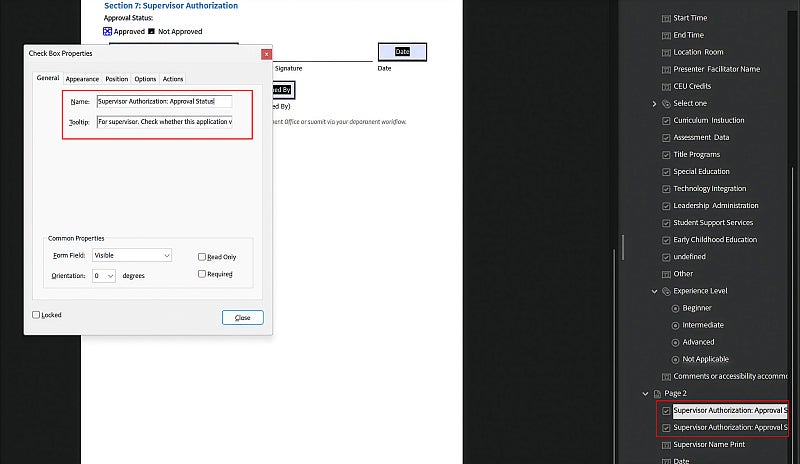
Right-click one of the checkboxes and select Properties
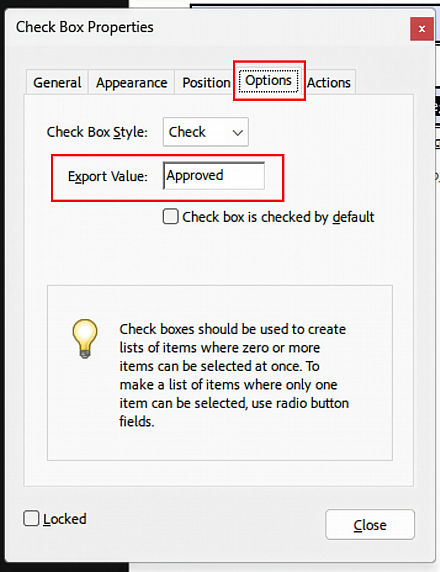
In the Options tab, note the Export Value — each checkbox in the group must have a unique export value
In the General tab, give all checkboxes in the group the same field name and tooltip value — this creates the group and enforces mutual exclusivity
Setting Up Radio Button Groups
Radio buttons in a group must share the same field name and have distinct export values:
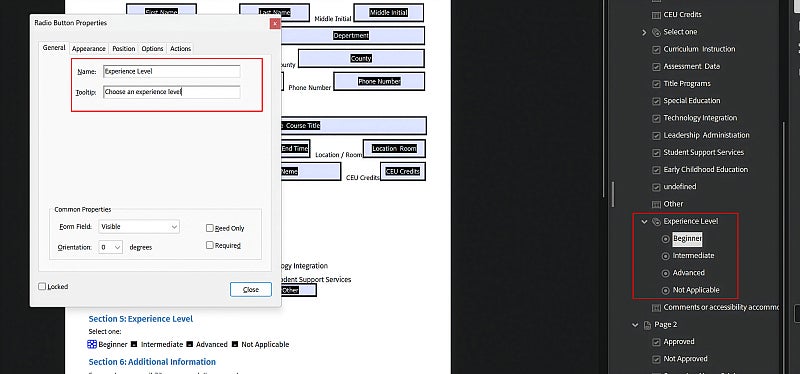
Right-click a radio button field and select Properties
In the General tab, assign the same field name and tooltip value to all buttons in the group
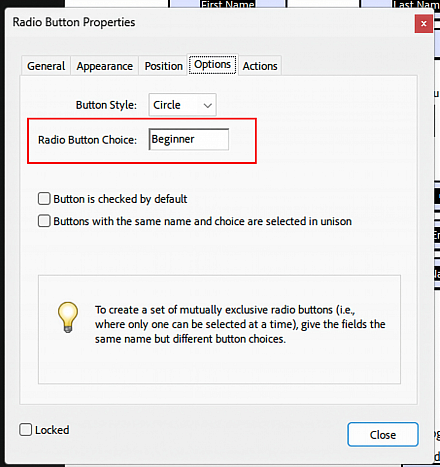
In the Options tab, assign a unique export value to each button (e.g., "Yes," "No," "NA")
Note on CommonLook validation: CommonLook will flag radio buttons or grouped checkboxes that share a field name regardless of whether they are configured correctly. This is a known limitation — CommonLook cannot reliably validate grouped field types in PDF. If you have followed the steps above, the group is correct. Do not rename fields to silence the flag.
Styling Radio Buttons to Resemble Checkboxes
Radio buttons with their standard circular appearance are a perfectly acceptable and recognizable interface convention for single-choice questions — there is no accessibility requirement to style them differently. If the form design calls for a checkbox appearance on radio button fields, set the Button Style to Square in the field's Options tab. This renders the radio button with a square indicator rather than a filled circle, while retaining the correct radio button role and mutual-exclusivity behavior.
The default checkmark glyph for this style is small and faint. Each radio button in the group will need its appearance adjusted individually — there is no batch option. Adjust the checkmark size and color in the Appearance tab of each field's properties until it is clearly visible.