Form Field Tag Structure and Testing
Tag Structure and Field Positioning
Form field tags must be nested within the tag for their label. This ensures screen readers in form-filling mode announce the label before the field, even when the visual layout places the field before its label (as is common with checkboxes and radio buttons).
The correct structure places the Form tag for the field inside the paragraph or other container tag that holds the label text:
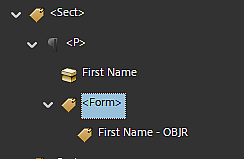
- Label tag (paragraph or similar)
- Label text content
- Form tag (field nested here)
To verify and correct field tag position:
- Open the Tags panel (View > Show/Hide > Navigation Panes > Accessibility Tags)
- Locate the form field's tag in the tree
- Confirm that the field tag is nested inside the label tag — not placed after it as a sibling
- If the field tag is a sibling of the label tag rather than nested within it, drag the field tag into the label tag in the tree
For checkbox and radio button fields, which are typically placed visually to the left of or above their label text, verify nesting carefully — these are the most common cases where the structure needs correction.
Adding Form Fields to the Tag Tree
After running the Prepare Form tool, form fields exist as interactive annotations in the PDF — but the fields and dynamic elements (objects) may not be automatically added to the tag tree. In this case, the tag tree entries for form fields must be created manually. This is true even when Tag Annotations is enabled in Acrobat's settings.
Manually Creating Form Field Tags
Form field annotations created by the Prepare a Form tool must be manually added to the tag tree. There are two approaches — choose based on the size and complexity of the form.
Option 1: Create Form Tags One at a Time
Leave Tag Annotations off. Add each form field to the tag tree individually using the steps below. This approach gives precise control over placement and is recommended for smaller forms or when Option 2 produces unexpected results.
- In the Tags panel, locate the tag for the form field's label — this will typically be a paragraph tag containing the label text
Inside that label tag, create a new Form tag — right-click the label tag, select New Tag, and choose Form as the tag type
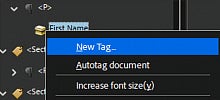
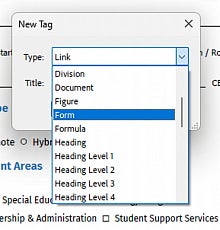
- Select the newly created Form tag in the tree
Right-click the selected Form tag and choose Find
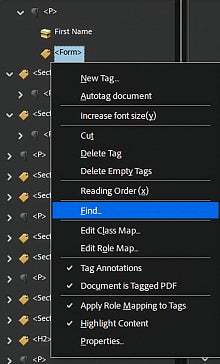
In the Find dialog, choose Unmarked Annotations from the dropdown
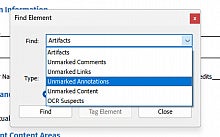
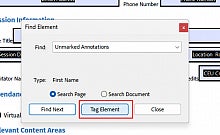
- Tab through the available annotations until the correct form field is identified — if fields were given meaningful names in the Prepare a Form step, the field name will appear in the Find window to help identify the right one
Click Tag Element to generate the field object inside the selected Form tag
- Repeat for each remaining field
Note: The order in which the Find dialog lists the unmarked annotations is based on the order of the fields in the Fields panel. Setting the order in the Fields panel before you start tagging means the fields come up in the same sequence as the form. See Setting Tab Order for detailed steps.
Option 2: Create All Field Annotations at Once
This approach uses Tag Annotations to generate all field objects in one pass, then organizes them into the correct tag structure afterward. It can save time on larger forms but requires careful reorganization after the annotations are created.
- In the Tags panel, create one Form tag and select it
Enable Tag Annotations from the Tags panel options menu (the three dots or ellipsis at the top of the panel, or right-click any tag in the tag tree)
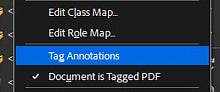
- Run the Prepare a Form tool — with Tag Annotations on and a Form tag selected, all field annotations should be created as objects in the tag tree, placed inside the currently selected tag
Verify that field objects were created in the tag tree. If they were not, follow Option 1 instead
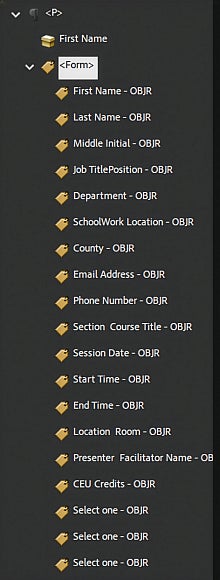
- Create the remaining Form tags — one inside each field's label tag
- Drag each field object from its current location into the correct Form tag, nested within its label
Note: Because all annotations are dropped into the tag that was active when Prepare a Form ran, the reorganization step in Option 2 can be significant for complex forms. Consider the size and structure of your form when deciding which option to use.
After completing either option, verify that each field tag is correctly nested within its label tag as described in the Tag Structure and Field Positioning section above.
Contrast Requirements for Form Fields
Form field borders and indicators must meet 1.4.11 Non-Text Contrast, which requires a minimum 3:1 contrast ratio between the field border and the surrounding background.
Light gray borders on a white background — a common default — frequently fail this requirement. Check field border contrast using a color picker tool and the WebAIM Contrast Checker. If borders fail, adjust the border color in the field's Appearance tab properties.
The same applies to checkbox and radio button indicators — the square or circle outline must meet the 3:1 minimum contrast ratio.
Testing the Completed Form
Every accessibility check available to us — Acrobat's built-in checker, CommonLook, and Microsoft's checker — is a binary test. It checks whether an accessibility feature exists, not whether it is useful. For example, a form field with a tooltip of "text" passes the same as one with a tooltip of "First Name."
A passing result confirms the required elements are present — a manual review confirms they are meaningful. Before a form is published, please review each of the following for quality, not just presence:
- Tooltip text on every field
- Field labels
- Tab order
- The overall flow of the form as a screen reader user would experience it
After completing remediation, test the form before publishing:
- Run the Accessibility Checker: go to All Tools > Prepare for Accessibility > Check for Accessibility and address any failures
- Test tab order: Tab through all fields and confirm the sequence is logical. In addition, use the arrow keys on your keyboard to navigate the tag tree in the Tags panel and verify reading order at the tag level:
- Container tags such as article, section, and table tags may need to be expanded to fully test the reading order of their contents — the tab sequence reflects the order of tags within these containers
- If a tag appears to contain more content than expected — for example, a paragraph tag that seems to encompass multiple form label and field pairs, or unrelated content items — expand it to inspect its contents. What looks like a single tag entry may contain several items that need to be individually reordered or retagged before the reading and tab order will be correct
- Test with a screen reader: navigate the form using keyboard only and a screen reader to verify that field labels are announced correctly, required field indicators are clear, and validation messages are announced.
- Test form submission or printing: complete the form and verify it works as intended end to end