Accessibility Tools Primer
Adobe Acrobat Pro is the primary tool for verifying and remediating PDF accessibility. Before beginning remediation work, it helps to understand the panels and tools you will be working with. This page provides a brief orientation to the interface elements most relevant to accessibility work.
If you are already familiar with Acrobat's interface, you can skip this page and go directly to the Remediation in Adobe Acrobat page.
The Navigation Panel
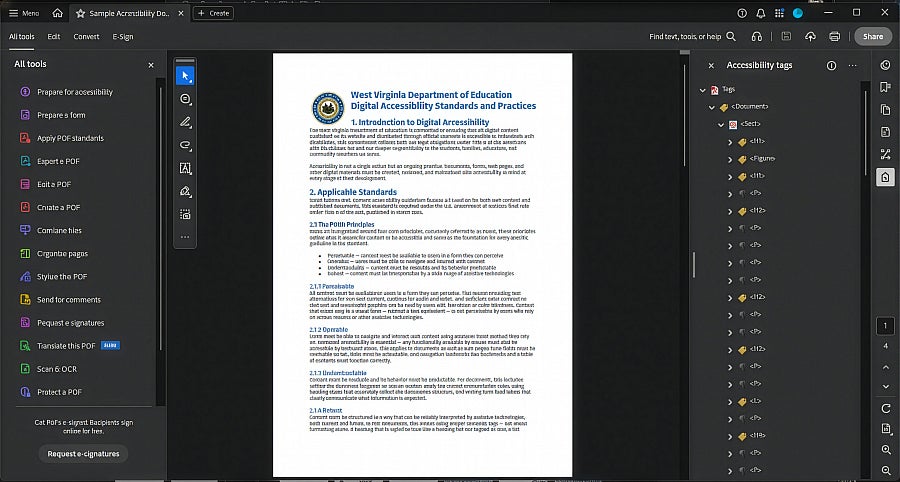
The left side of the Acrobat window contains a vertical toolbar of icons that open navigation panels. Each panel provides a different view of or access point into the document's structure. Understanding which panel to reach for — and when — is the foundation of efficient remediation work.
To open any panel, click its icon in the left toolbar. Click it again to close. Multiple panels can be open at once, and panels can be resized by dragging their edges.
Tags Panel

The tags panel displays the document's complete tag tree. This is the primary interface for accessibility remediation. Every structural element in the PDF — headings, paragraphs, lists, tables, images, form fields — is represented here. The sequence of tags in the tree determines the reading order screen readers follow. Most remediation work happens in this panel.
For a plain-language explanation of what the tag tree is and how it works, see the Working With the Tags Panel page.
Content panel

The Content panel displays the document's content streams organized by page. Where the Tags panel shows logical structure, the Content panel shows the physical content objects on each page. Useful for identifying untagged content, locating artifacts, and understanding the relationship between content items and their tags.
Order Panel

The order panel displays a visual, numbered representation of the reading order on each page. Numbers on the page show the sequence in which a screen reader will encounter content. Useful for verifying reading order after export and identifying where reordering is needed. Changes made here update the underlying tag structure.
Bookmarks Panel

The bookmarks panel displays the document's bookmark hierarchy. Bookmarks provide persistent navigation that readers can use to jump between sections without returning to the table of contents. Used to verify that bookmarks were generated correctly on export and to add or reorganize them manually when needed.
Pages Panel

The pages panel displays thumbnail previews of each page. In addition to navigation, this panel is used to access Page Properties, where tab order for form fields is set using the Use Document Structure option.
Comments Panel

The comments panel displays all comments and annotations in the document. During remediation, this panel is useful for identifying annotation flags that appear in accessibility checker results but cannot be located visually in the document.
All Tools Bar
The All Tools bar provides access to Acrobat's main task areas. The following tools are most relevant to accessibility work. To access them, click the grid icon at the top of the left toolbar or go to View > Tools, then locate each tool in the list.
Prepare For Accessibility

The Prepare for Accessibility tool is the primary hub for accessibility checking and remediation. From here you can run the full accessibility checker, fix reading order, add or correct alt text, and run preflight. Most accessibility work begins here.
Prepare A Form
The Prepare a Form tool is used to create and edit interactive form fields in a PDF. Acrobat scans the document for visual field indicators and auto-detects field locations. Additional fields can be added manually, and existing field properties — labels, tooltips, tab order, and field type — are set here. See the Creating Accessible PDF Forms page for the full form workflow.
Apply PDF Standards
The Apply PDF Standards tool is used to convert a PDF to a specific standard format such as PDF/A for archival or PDF/X for print, and also provides access to Preflight.
Preflight is a powerful diagnostic and fixup tool that can check a document against technical profiles and run automated corrections. While a full discussion of Preflight is outside the scope of this guide, it is worth knowing it is available here — particularly the accessibility-related Preflight profiles that can identify structural issues not surfaced by the standard accessibility checker.
CommonLook
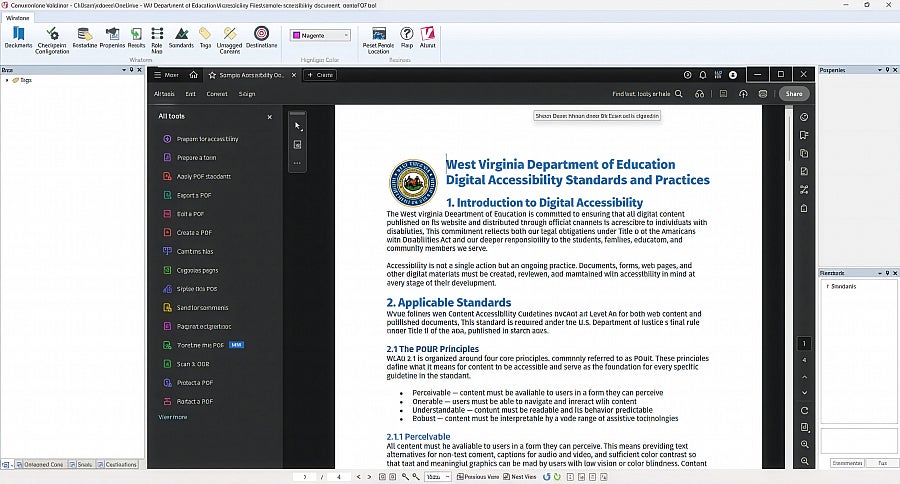
CommonLook is an accessibility validation tool provided by Allyant that overlays the current instance of Adobe Acrobat Pro. When launched, it opens within the Acrobat environment — you do not switch to a separate application. WVDE uses the free version of CommonLook, which provides accessibility checking and report navigation. Some features available in paid versions of CommonLook are not available in the version used here.
CommonLook checks PDF documents against accessibility standards and produces a detailed report of failures, warnings, and manual checks. It is used alongside Acrobat's built-in accessibility checker to identify issues that require remediation.
Accessing CommonLook
With the PDF open in Acrobat, go to Menu > Plugins > CommonLook > CommonLook PDF Validator. If the CommonLook option is not visible under Plugins, CommonLook may not be installed on your workstation — contact your IT department for installation assistance.
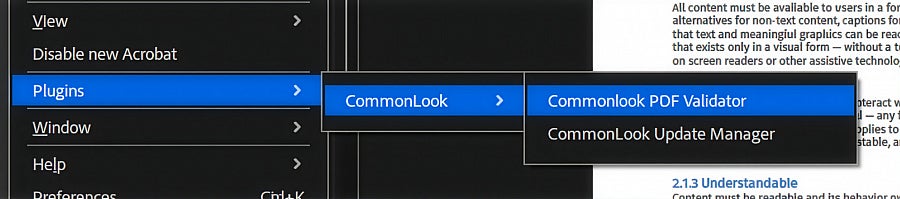
[Screenshot: Acrobat Plugins menu showing CommonLook PDF Validator option]
CommonLook checks PDF documents against accessibility standards and produces a detailed report of failures, warnings, and manual checks. It is used alongside Acrobat's built-in accessibility checker to identify issues that require remediation.
Selecting a Standard
n CommonLook, locate the Standards modal window. Select Standards, then Accessibility, then choose WCAG 2.1 AA, then press the Full button to run a complete check against that standard.
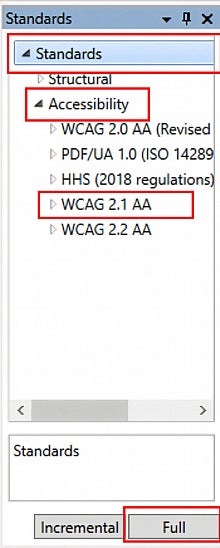
WCAG 2.1 AA is the standard WVDE follows for all published documents, as required under the DOJ Title II rule. Do not select an alternative standard unless you have a specific reason to do so.
Filtering Results by Failures
After the check runs, CommonLook displays a results panel listing all findings organized by checkpoint. The panel includes failures, warnings, and manual checks. Filter the results to show failures only — failures are items that must be addressed before the document meets the selected standard. Warnings and manual checks require judgment but are not automatic failures.
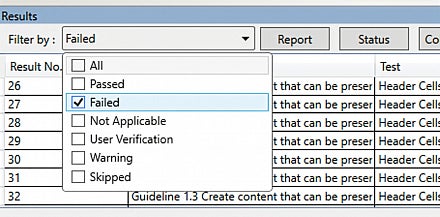
Work through failures systematically before addressing warnings. Not every flagged item requires a fix — some flags reflect known limitations of CommonLook's validation logic for PDF. See the {Common Accessibility Errors} page for guidance on interpreting specific flags, including known cases where a correctly structured document will still be flagged.
Navigating to the Source of a Failure
Clicking on an individual result in the CommonLook report highlights the corresponding element in the document and, where possible, identifies its location in the tag structure.
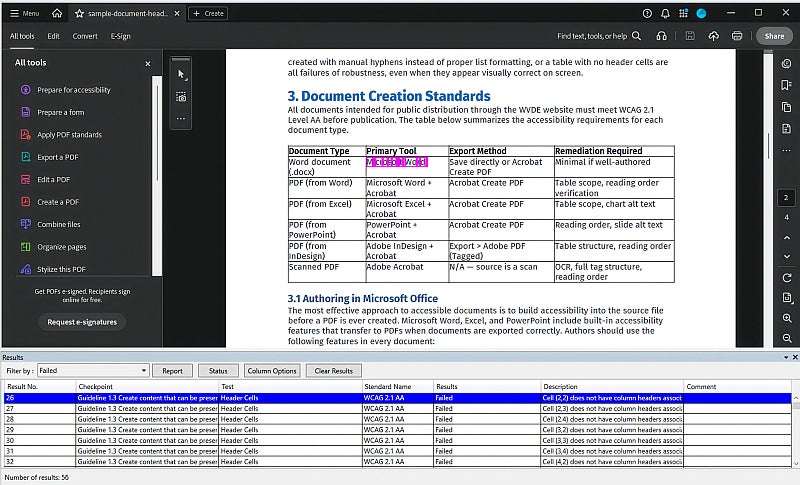
Use this to locate the element that needs remediation, then switch to the Tags panel in Acrobat to make the necessary correction. CommonLook identifies the issue; Acrobat's Tags panel is where the fix is applied.