Fixing List Structure In Adobe Acrobat
Lists are a common source of accessibility failures in PDFs, particularly when they were created using manual formatting in the source document rather than built-in list styles. A properly structured list in the tag tree requires four tag types working together:
- L — the list container
- LI — each list item
- Lbl — the bullet or number label for the item
- LBody — the text content of the item
A manual list — one created with hyphens, asterisks, or tab indents rather than Word's built-in list tool — will export as a series of paragraph tags with no list structure at all. These must be rebuilt manually in Acrobat.
Identifying List Structure Problems
In the Tags panel, expand the section of the document where a list appears. A correctly structured list will show an L tag containing LI tags, each of which contains an Lbl and an LBody.

Common problems include:
- A series of P tags where a list should be — indicating a manual list in the source document
- LI tags containing only text content with no Lbl or LBody children
- Nested lists where the child L tag sits outside its parent LI rather than inside the LBody
Correcting a Manual List (P Tags)
If the list appears as a series of paragraph tags:
- In the Tags panel, locate the P tags that correspond to the list items
- Create a new L tag at the correct location in the tree — right-click the parent tag and select New Tag, choose L
- For each list item, create an LI tag inside the L tag
- Inside each LI, create an Lbl tag and an LBody tag
- Drag the content items from the original P tags into the appropriate Lbl or LBody tags — bullet or number characters go in Lbl, item text goes in LBody
- Once all content has been moved, delete the now-empty P tags
Correcting Missing Lbl or LBody Tags
If LI tags exist but contain only text with no Lbl or LBody children:
- Expand the LI tag to reveal its content items
- Right-click inside the LI and create a new Lbl tag
- Create a new LBody tag after the Lbl
- Drag the bullet or number content item into the Lbl tag
- Drag the text content item into the LBody tag
- Repeat for each LI in the list
Correcting Nested List Structure
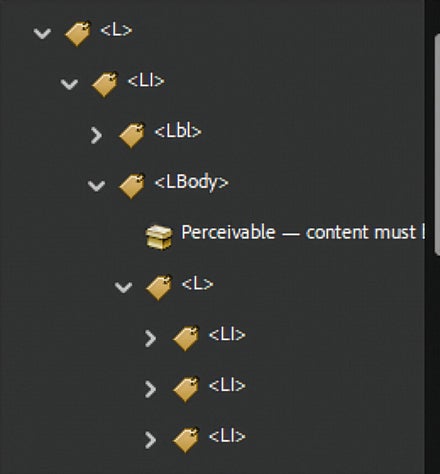
A nested list should be structured so the child L tag sits inside the LBody of its parent LI — not as a sibling of the parent LI. If the nested L tag appears at the wrong level:
- Locate the child L tag in the Tags panel
- Drag it into the LBody of the LI tag it belongs to
- Verify the nesting matches the visual indentation in the document.