Tables in Adobe Acrobat
Tables are one of the most common sources of accessibility failures in PDFs. Even tables that transfer cleanly from Word may need scope verification in Acrobat.
Note for Mac users: If you find that a multi-page table has been split into a separate table tag for each page, this is likely the result of using the Adobe Create PDF cloud service during export. The cloud service does not preserve the continuous table structure that the local export engine produces. If possible, return to the source document and re-export using the Acrobat Create PDF feature with the cloud service declined (click No when prompted).
See the export guidance on the Structuring Your Document For Accessibility page for details.
Accessing the Table Editor
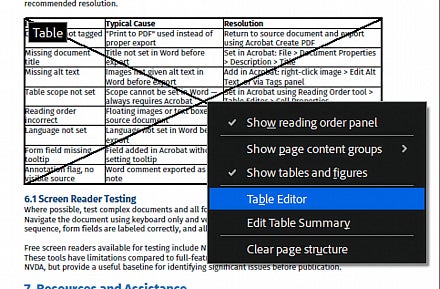
The table editor in Acrobat is accessed through the Reading Order tool, not directly through the Tags panel.
- Go to All Tools > Prepare for Accessibility > Fix Reading Order
- Click anywhere inside the table on the document page
- Click Table Editor in the Reading Order panel
The Table Editor highlights cells and displays their current role (header or data cell).
Setting Table Headers and Scope
In the Table Editor, header cells are shown in red and data cells in gray. To change a cell's role or set its scope:
- Right-click a cell in the Table Editor view
- Select Table Cell Properties
- Set the cell type to Header Cell or Data Cell
- For header cells, set the Scope — Column for column headers, Row for row headers
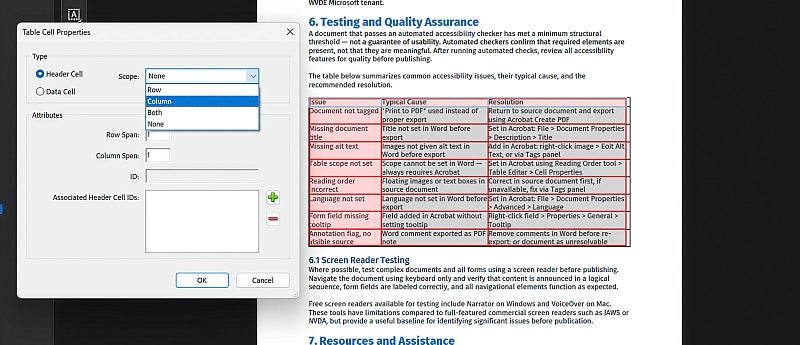
Every table should have at minimum one header row with column scope assigned to each header cell. Tables that also have row headers (labels in the first column) need row scope applied to those cells as well.
Multi-Page Tables
Tables that span multiple pages require additional remediation beyond setting scope. The structure of the exported PDF depends on the source of the file and the method used to export — each produces a different tag structure requiring different remediation steps. Identify your scenario below before beginning.
For a visual walkthrough of multi-page table remediation in Acrobat:
The video does not cover every table structure you may encounter, but it demonstrates the core steps — artifacting repeated header content and consolidating table structure in the Tags panel — that apply across all of the scenarios below.
Files produced by the Graphics department using Adobe InDesign will most commonly exhibit Structure 3 — alternating header and body section pairs within a single table tag.
Artifacting Repeated Header Rows
Every structure below requires the repeated header rows — every header row except the first — to be artifacted, so a screen reader does not announce the column headers again at each page break. The quickest way is to artifact each repeated row directly on the page with the Reading Order tool, and then remove the empty tags it leaves behind.
- Open the Reading Order tool using the ellipsis (three dots) at the top of the Tags panel
- On the page, use the Reading Order tool to select the repeated header rows (all except the first)
- In the Reading Order panel, click Background/Artifact to set the tag type for the selection
- In the Tags panel, delete the unneeded row tags left behind in the table tag — the steps for each structure below identify which tags to remove
To tell which row a tag belongs to, select the row (<TR>) tag in the Tags panel. This helps you identify the repeated header rows before you artifact them, and confirm which tags are left to delete afterward.
Structure 1: Single table, all repeated header rows grouped in one header (<THead>) section
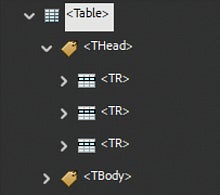
This structure is most often encountered when using Save As PDF (recommended) method when exporting to PDF.
The table tag contains one header section with multiple row tags inside it — one per page break — followed by a single body section.
Remediation steps:
- Open the Tags panel and expand the table tag
- Expand the <THead> tag — you will see multiple header row tags inside it. Select a row tag to see which row it is in the document - the row should be highlighted in the document.
- Select the row in the document using the Reading Order tool.
- Artifact the repeated header rows (all except the first), as described in Artifacting Repeated Header Rows above
- Select each now-empty row tag (all except the first) and press Delete, or right-click and select Delete Tag
- One header row tag should remain in the header section
- Open the Table Editor and set scope on the remaining header cells
Structure 2: Single table, header rows distributed in the body section
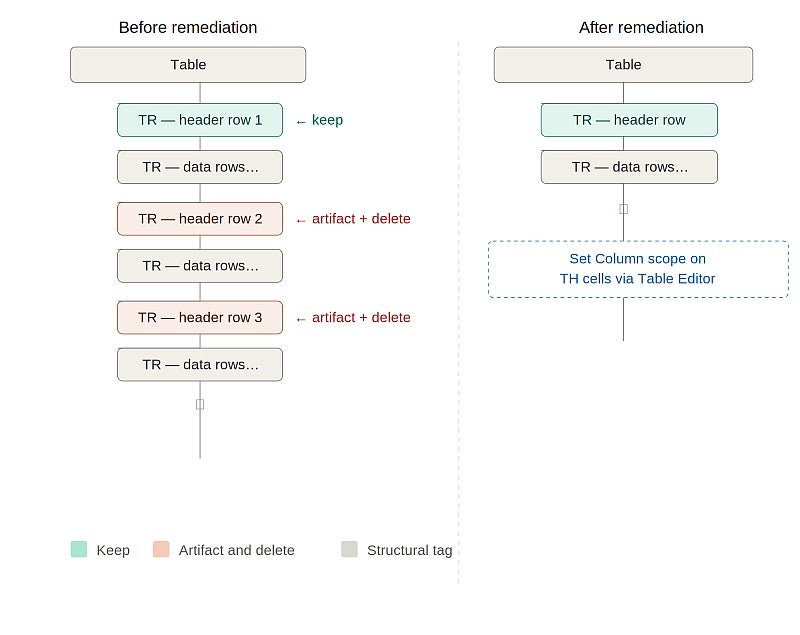
This structure is commonly found when using the Create Adobe PDF method in Microsoft products.
The table tag contains a single body section. Header rows appear throughout the body section at page boundaries alongside data rows — there is no separate header section tag.
Remediation steps:
- Save the file before you start. If something goes wrong, close it without saving and reopen it to return to this point.
- Open the Tags panel and expand the table tag
- Expand the <TBody> tag — locate the header row tags (<TR>) distributed at each page break. Select a row tag to see which row it is in the document - the selected row should be highlighted in the document.
- Select the row using the Reading Order tool.
Note: Be careful when you are selecting each of the rows to artifact in this structure to make sure you are not selecting content from rows above or below the row in question. - Artifact the repeated header rows (all except the first), as described in Artifacting Repeated Header Rows above
- Select each now-empty row tag (all except the first) and press Delete, or right-click and select Delete Tag
- Open the Table Editor and set scope on the remaining header cells — Column for column headers, Row for row headers
- Verify the table passes the Accessibility Checker
Structure 3: Single table, alternating header and body section pairs
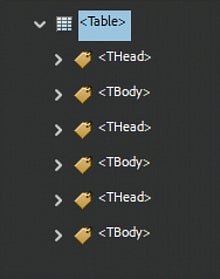
The table tag contains alternating header and body section pairs — one of each per page. This fails both table structure and accessibility validation, and prevents the Table Editor from being used.
This structure is commonly found when exporting a multi-page table from Adobe products like InDesign, most often files created by our Graphics department.
Remediation steps:
- Save the file before you start. If something goes wrong, close it without saving and reopen it to return to this point.
- Open the Tags panel and expand the <Table> tag
- Expand each repeated header section (all except the first) to reveal its <TR> tag. Select the <TR> tag to see which row it is in the document - you should see the row highlighted in the document.
- Select the row using the Reading Order tool.
Note: Be careful when you are selecting each of the rows to artifact in this structure to make sure you are not selecting content from rows above or below the row in question. - Artifact the repeated <THead> rows (all except the first), as described in Artifacting Repeated Header Rows above
- For each repeated header section (all except the first):
- Select the now-empty <TR> tag and press Delete, or right-click and select Delete Tag
- Select the now-empty <THead> tag and press Delete, or right-click and select Delete Tag
- For each repeated body section (all except the first):
- Drag each row tag from the repeated <TBody> tag into the <TBody> tag, being careful that the row tags stay in the correct order.
- Select the now-empty <TBody> tag and press Delete, or right-click and select Delete Tag
- The result should be one <THead> tag with one <TR> tag and one <TBody> tag containing all data rows (<TR> tags containing <TD> tags)
- Open the Table Editor and set scope on header cells
Structure 4: Multiple separate tables, each with their own header and body section
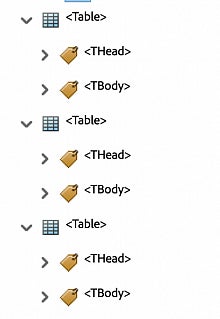
The document contains multiple table tags — one per page — each with their own header and body section. Remediation requires merging these into a single table and removing the repeated header rows.
Remediation steps:
- Save the file before you start. If something goes wrong, close it without saving and reopen it to return to this point.
- In the Tags panel, identify the first <Table> tag — this will become the single consolidated table
- Select a <THead> tag in each table to see which row it is in the document, then select the row using the reading order tool.
Note: Be careful when you are selecting each of the rows to artifact in this structure to make sure you are not selecting content from rows above or below the row in question. - Artifact the <THead> tag of every table except the first, as described in Artifacting Repeated Header Rows above.
- For each subsequent table tag:
- Expand the table tag and open its <THead> tag
- Select the now-empty <TR> tag and press Delete, or right-click the tag and select Delete Tag.
- Select the now-empty <THead> tag and press Delete, or right-click the tag and select Delete Tag.
- Drag each <TR> tag located in the repeated <TBody> tags into the first table's body section, making sure that the rows stay in the intended order
- Select the now-empty <TBody> tag and press Delete, or right-click and select Delete Tag
- Right-click the now-empty <Table> tag and press Delete, or right-click and select Delete Tag
- The result should be one <Table> tag containing one header section with one row, and one body section with all data rows
- Open the Table Editor and set scope on the header cells