Setting Document Properties in Adobe Acrobat
Document title and language should be set in the source document before export, but both can be corrected in Acrobat if they are missing or incorrect.
Setting the Document Title
- Go to File > Document Properties (or press Ctrl+D / Cmd+D)
- Select the Description tab
- Enter a clear, descriptive title in the Title field
- Click OK
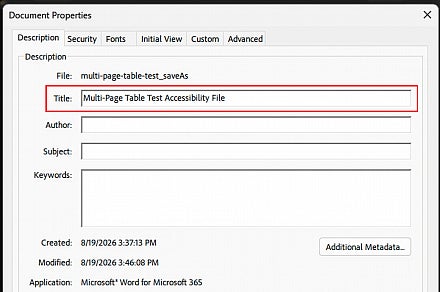
After setting the title, ensure Acrobat displays the title rather than the filename in the title bar. Go to File > Document Properties > Initial View and set Show to Document Title.
Document Title Display
One initial view setting worth setting deliberately is how the document title is displayed in the title bar and browser tab. Acrobat can display either the document title (set in Document Properties) or the filename.
The document title is the accessible, descriptive name set in the file's properties. The filename is often an internal reference number, date code, or abbreviated name that is not meaningful to users.
To ensure the document title is displayed rather than the filename:
- Go to File > Document Properties
- Select the Initial View tab
- Under Window Options, set Show to Document Title
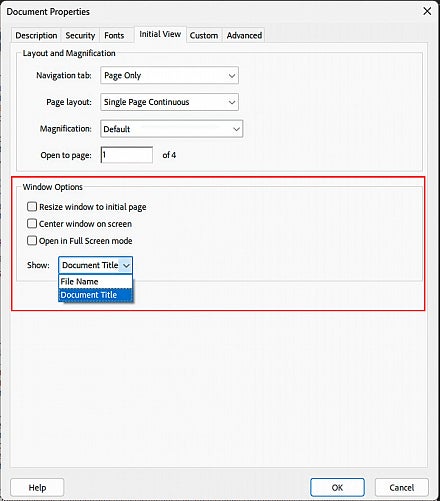
This setting works together with the document title set in the Description tab of Document Properties. If no title has been set, the filename will display regardless of this setting — set the document title first.
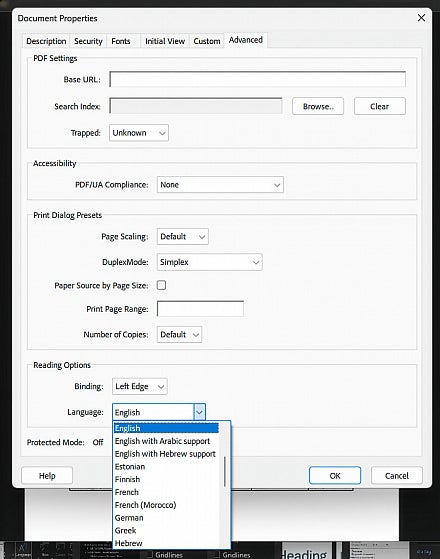
Setting Document Language
- Go to File > Document Properties
- Select the Advanced tab
- Under Reading Options, set the Language field to the appropriate language
- Click OK
After exporting a PDF from your source document, several document-level settings in Adobe Acrobat should be reviewed before publishing. These settings control how the PDF is secured, how it opens, and how it identifies itself to assistive technology. This page covers each of those settings and explains the accessibility implications of the choices available.
For guidance on accessible PDF forms, see the Creating Accessible PDF Forms page.
PDF Security and Encryption
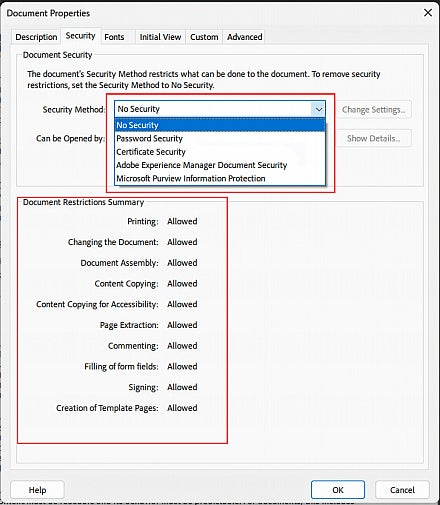
For most WVDE documents intended for public distribution, no security settings should be applied. The default No Security setting is the appropriate choice.
If a document does require security, Password Security is the only option you are likely to use. When applying password security, review the permissions carefully — restrictions on content copying or extraction can prevent screen readers from accessing the document entirely. Ensure that permissions allow copying of content.
Apply the minimum restrictions necessary and test the secured document with a screen reader before publishing. A document that appears visually correct after security is applied may be completely inaccessible to assistive technology users.
To apply security settings: go to File > Document Properties > Security.
Initial View Settings
Acrobat allows you to control how a PDF opens — what page it opens to, how the page is displayed, and whether the document opens in full screen mode. These settings affect the experience for all users, including those using assistive technology.
Use Default View Settings
The default view settings in Acrobat are the most accessible option for most documents. They allow users to open the document in the way that works best for their own setup, zoom preferences, and assistive technology configuration.
Avoid forcing full screen mode. Full screen view removes the Acrobat toolbar and navigation controls, which can be disorienting and makes it harder for users — particularly those using screen readers or keyboard navigation — to access the controls they need.
Avoid setting a fixed initial zoom level. Users may have accessibility needs that require a different zoom level. Overriding their preferences with a fixed zoom creates an unnecessary barrier.
Avoid opening to a specific page other than the first unless the document has a specific navigational reason to do so — for example, a bookmarked section. Even then, ensure the document's bookmark structure and table of contents allow users to navigate freely from wherever they land.
Setting Initial View in Acrobat
To review or adjust initial view settings: go to File > Document Properties > Initial View. Leave all settings at their defaults unless there is a specific, accessibility-reviewed reason to change them.