Working With Links in Adobe Acrobat
Links in PDFs must be functional, descriptive, and correctly tagged. Acrobat allows you to check link properties, add descriptive tooltips, and mark display-only URLs as artifacts.
Link Tag Structure
Links in the tag tree require a specific structure depending on the type of link. Understanding these structures helps when links are missing from the tag tree or need to be corrected.
External links (URLs, mailto:, and file links)
External links — those that point to a web address, email address, or external file — use a Link tag containing two elements: the visible link text content and a Link-OBJR element. The Link-OBJR is an object reference that connects the tag structure to the actual clickable link annotation in the PDF. Without the Link-OBJR, the link annotation exists visually but is not accessible to screen readers.
The correct structure is:
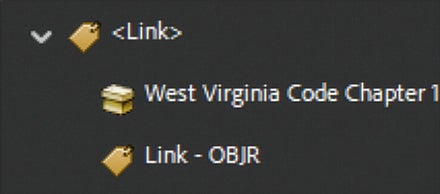
- Link tag
- Link text content
- Link-OBJR (object reference to the link annotation)
In-page links (table of contents entries and cross-references)
Links that point to a location within the same document — such as table of contents entries that jump to headings, or cross-references — use a Reference tag as the outer container, with a Link tag and Link-OBJR nested inside.
The correct structure is:
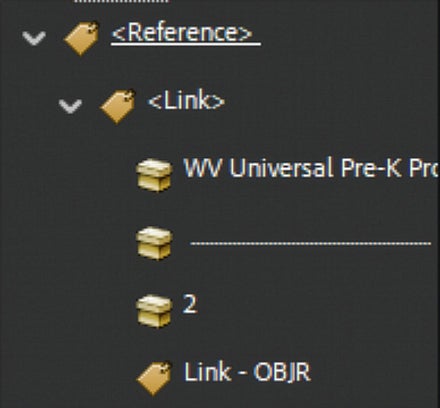
- Reference tag
- Link tag
- Link text content
- Link-OBJR (object reference to the link annotation)
- Link tag
Creating Links Manually in a PDF
If a hyperlink was missed during the authoring step and needs to be created directly in Acrobat:
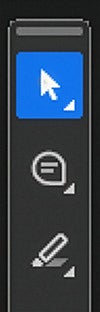
Select the Select Text tool from the Acrobat toolbar
- Select the link text on the document page
- In the Tags panel, confirm the tag where your text is located is selected
Right-click the selected text on the page and choose Create Link
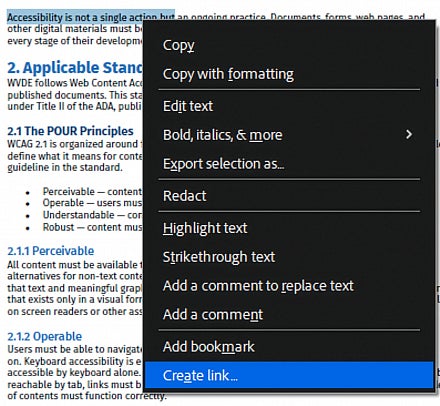
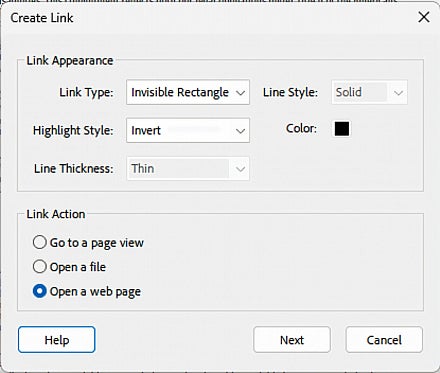
In the Create Link dialog, configure the link type and destination. Link Appearance selections should be kept as default choices. Then click Next
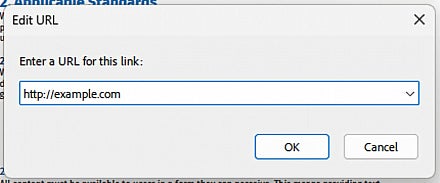
In the Edit URL dialog, enter the URL that you want the link to navigate to.
Acrobat will create the link annotation and add the appropriate tag structure for the selected text. Double check
The tags that were created in this step reflect the tag structure listed under the Link Tag Structure section.
The tags are in the correct location
A link object was created (Link - OBJR)
Adding Link Annotations to the Tag Tree
If the accessibility checker or CommonLook flags a link as untagged, check the Tags panel before taking any action. Expand the Link tag for the flagged link — if it contains the link text content but no Link-OBJR, the link annotation exists but has not been connected to the tag structure. This is what needs to be corrected.
Do not use Create Link in this situation — the annotation already exists, and creating a new one would produce a duplicate. Instead, connect the existing annotation to the existing Link tag:
For each link missing from the tag tree:
- In the Tags panel, locate the position in the tree where the link should appear — typically within the paragraph or list item that contains the link text
- Create a new Link tag at that location (or a Reference tag for in-page links, with a Link tag nested inside it)
- Select the newly created Link tag in the Tags panel
- Right-click the Link tag and choose Find
In the Find dialog, choose Unmarked Annotations or Unmarked Links from the dropdown
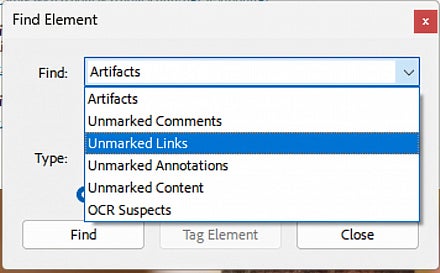
- Tab through the available annotations until the correct link is identified — the link URL or destination may appear in the Find window to help identify it
- Click Tag Element to generate the Link-OBJR object inside the selected Link tag
Because the Link tag is selected when Tag Element is clicked, the Link-OBJR is created inside it, connecting the annotation to the tag structure. Double check that this is the case. If the link object was created but not in the proper location, find the object, and drag the object to the correct location in your tag tree.
Checking Link Properties
The easiest way to verify a link is correct is to click it in the document and confirm the destination opens as expected.
To inspect or edit link properties, start in the Edit panel and select Links to expose the link bounding boxes in the document. Once links are visible, right-click a link bounding box and select Properties. The Link Properties dialog shows the link's action (what it does when clicked), its appearance, and any associated tooltip text.
Verify that:
- The link action points to the correct URL or destination
- The link text or tooltip is descriptive enough to make sense out of context
Adding Link Descriptions
A link description provides context about a link's destination or purpose that screen readers can announce to users. This is particularly useful when the visible link text is short or when additional context would help users decide whether to follow the link.
To add or edit a description for a link:
- Open the Tags panel and locate the link tag in the tree
Right-click the link tag and select Properties
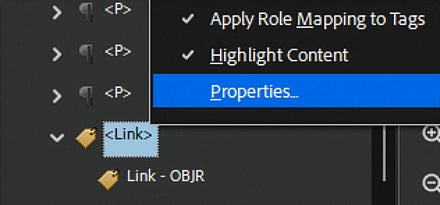
In the Object Properties dialog, enter a brief description in the Description field
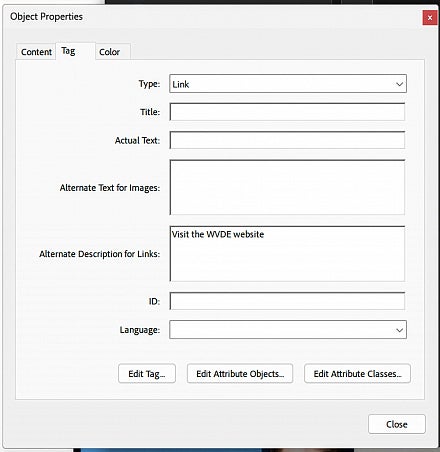
The description should clearly communicate the purpose or destination of the link. Examples:
- "Download the 2024 WVDE Annual Report (PDF)"
- "West Virginia Board of Education Policy 2510 — Assuring the Quality of Education"
- "WVDE Graduation Requirements page"
- "Title I funding guidelines on the federal Department of Education website"
For links added in Word using descriptive text and ScreenTips, these properties should have transferred correctly on export. Verify them in Acrobat before publishing.
Marking Printed URLs as Artifacts
When a document includes a visible URL intended for print purposes, that URL text should be marked as an artifact in the PDF so screen readers do not read it aloud — the clickable link carries the same destination, and reading the full URL text aloud is unnecessary noise.
To mark URL text as an artifact:
- Use the Reading Order tool to select the URL text
- If the text is already part of a larger paragraph tag, isolate the URL text by using the reading order tool to tag the text as a new paragraph tag.
- in the Tags panel, find the URL text element, right-click it, and select Change Tag to Artifact.