Images and Alternate Text in Acrobat
Every image in a PDF that conveys information must have alternative text. Images that are purely decorative must be marked as artifacts so screen readers skip them.
Setting Alt Text on Images
To add or edit alt text on an image in Acrobat:
- Right-click the image in the document view
- Select Edit Alt Text
- Enter descriptive alt text in the dialog
- Click OK
Alternatively, right-click the image's <Figure> tag in the Tags panel, select Properties, and enter alt text in the Alternate Text field.
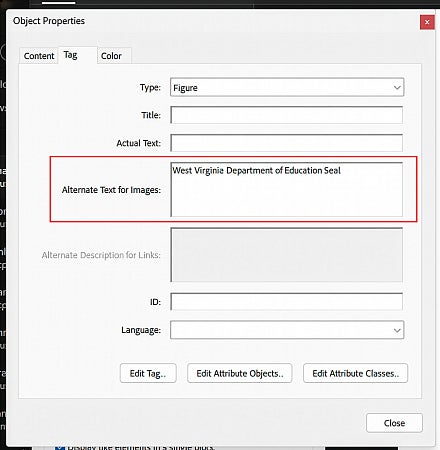
Write alt text that conveys the purpose or meaning of the image, not just its appearance.
See the Authoring Accessible Content page for guidance on writing effective alt text.
Marking Decorative Images as Artifacts
An artifact in a PDF is an element intentionally hidden from assistive technology — background elements, decorative graphics, page borders, and similar content that adds no informational value. Screen readers skip artifacts entirely.
To mark an image as an artifact in Acrobat:
- Open the Reading Order tool
- Select the image in the document by drawing a selection around the image
- Using the Reading Order dialog, choose Background/Artifact.
Alternatively, in the Tags panel, right-click the image's content tag and select Change Tag to Artifact.
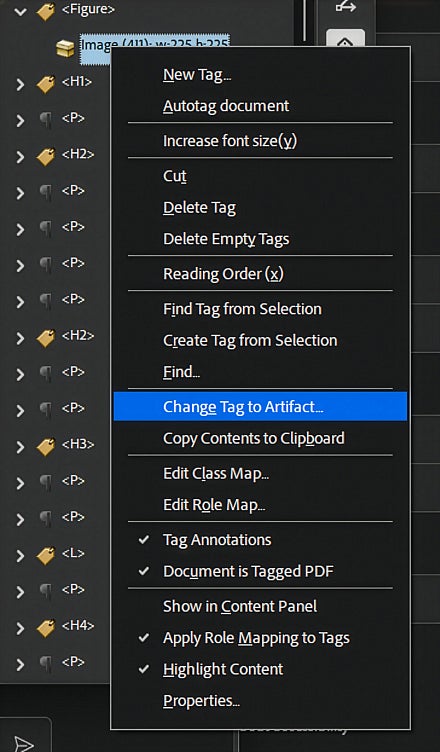
The same approach applies to other content that should be artifacted — decorative rules, background images, repeated header/footer content, and display-only URLs in print documents.