Accessible Images and Alternate Text
Every image in a document must either have alternative text (alt text) or be marked as decorative. This requirement applies to photos, illustrations, icons, charts, graphs, diagrams, maps, and any other non-text visual element.
This is required under 1.1.1 Non-text Content (WCAG 2.1 Level A) — it is not optional
Writing Effective Alt Text
Alt text should convey the meaning or purpose of the image, not just describe its appearance. A screen reader user who cannot see the image should get the same information from the alt text that a sighted user gets from the image itself.
General guidelines:
- Be concise. Most alt text should be one to two sentences. If you find yourself writing more than that, the image is probably complex enough to need a longer description in the document body (see Complex Images below for more information and examples).
- Describe the purpose, not just the appearance. "Bar chart showing West Virginia graduation rates by county for 2023" is more useful than "A blue and gray bar chart."
- Do not begin with "Image of" or "Picture of." Screen readers already announce that the element is an image.
- Do not repeat information that is already in the surrounding text. If a caption already fully describes the image, the alt text can be brief.
To add alt text in Word, right-click the image and select Edit Alt Text.
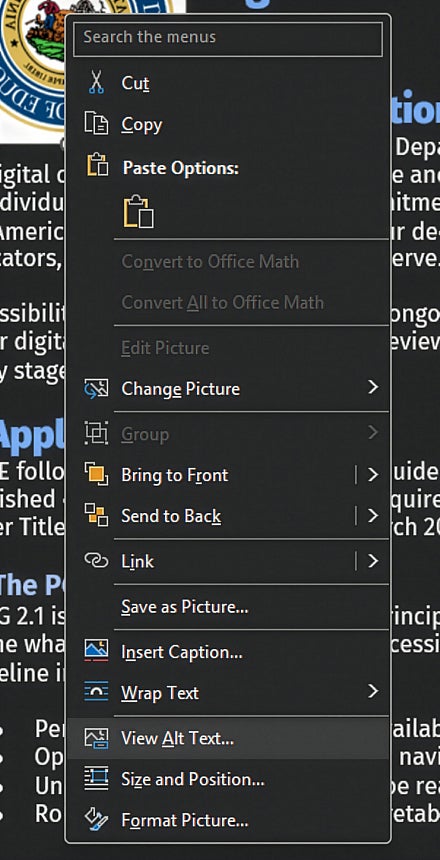
Enter your description in the alt text pane. Do not use the image title field as a substitute for alt text.
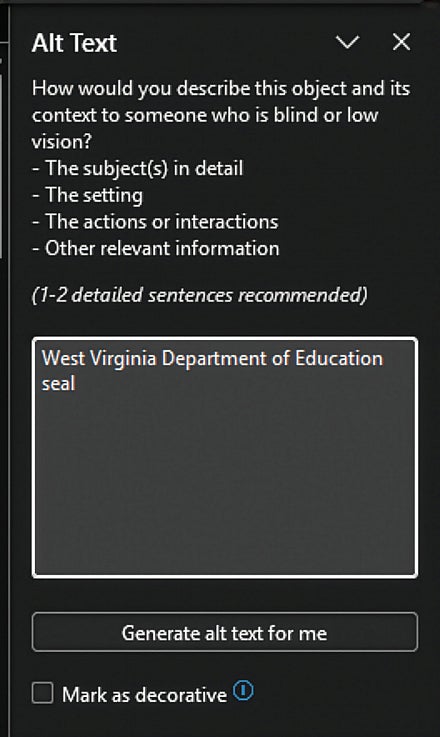
Decorative Images
Some images are purely decorative — they add visual interest but do not convey any information that is not already present in the surrounding content. Decorative images should be marked as such so screen readers skip them rather than announcing them.
In Word, right-click the image, select Edit Alt Text, and check the Mark as decorative checkbox.
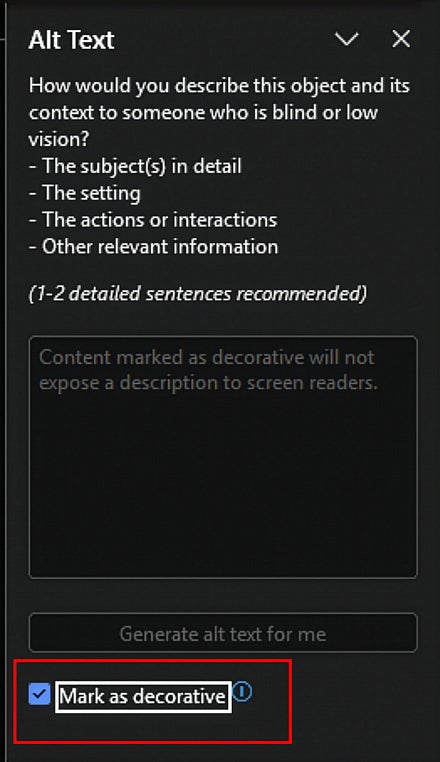
Use this option carefully. If there is any chance the image conveys information that a screen reader user would benefit from, write alt text instead.
What Is a Decorative Image?
The test is straightforward: if the image were removed, would a reader miss any information? If the answer is no, the image is decorative. Common examples include:
- Photographs of people used for visual interest when the image does not identify a specific person or illustrate a specific event referenced in the text
- Background images, decorative borders, and design elements
- Icons or visual separators repeated throughout a document
- Stock photography used to break up text without adding meaning
Photographs of people are a particularly common case. When a photo is included for visual interest rather than to identify someone or document a specific event, it can and should be marked as decorative.
Complex Images
Some images — maps, charts, graphs, infographics, and technical diagrams — contain too much information to convey in a brief alt text string. For these images, use a layered approach:
- Brief alt text on the image itself, indicating that a description follows in the document body
- Descriptive text in the document body, summarizing the key findings or information the image conveys
- A data table in the document body, providing the underlying data for users who need to access individual values
This approach ensures that all users — sighted and non-sighted — have access to the same information, regardless of how they access the document.
Examples
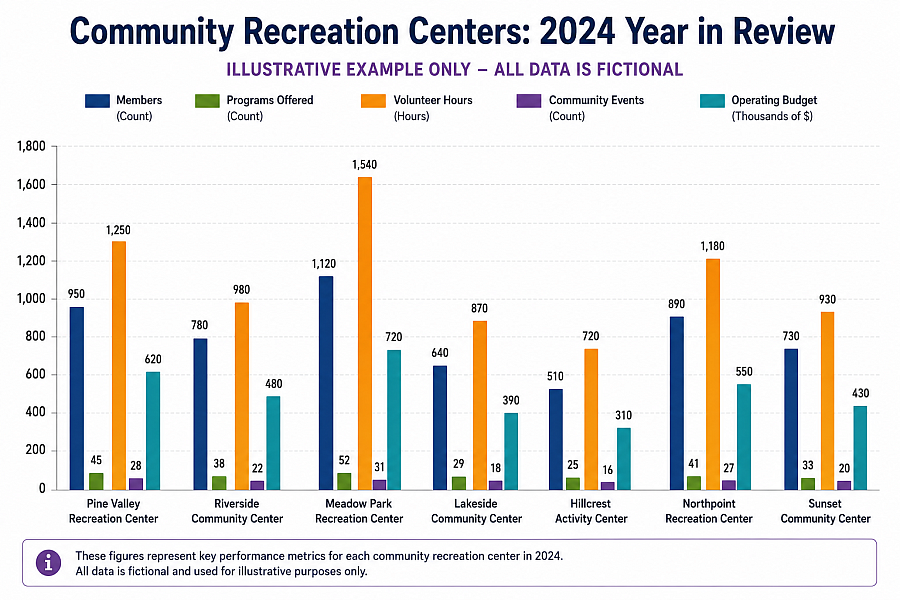
The first example below shows a grouped bar chart comparing multiple metrics across several locations — a common format in reports and annual reviews. A chart like this packs a significant amount of comparative data into a single visual. A sighted user can scan across bars and spot patterns at a glance; a screen reader user navigating the chart without a text alternative receives none of that context. The alt text, descriptive summary, and data table together recreate that experience in a format that works for everyone.
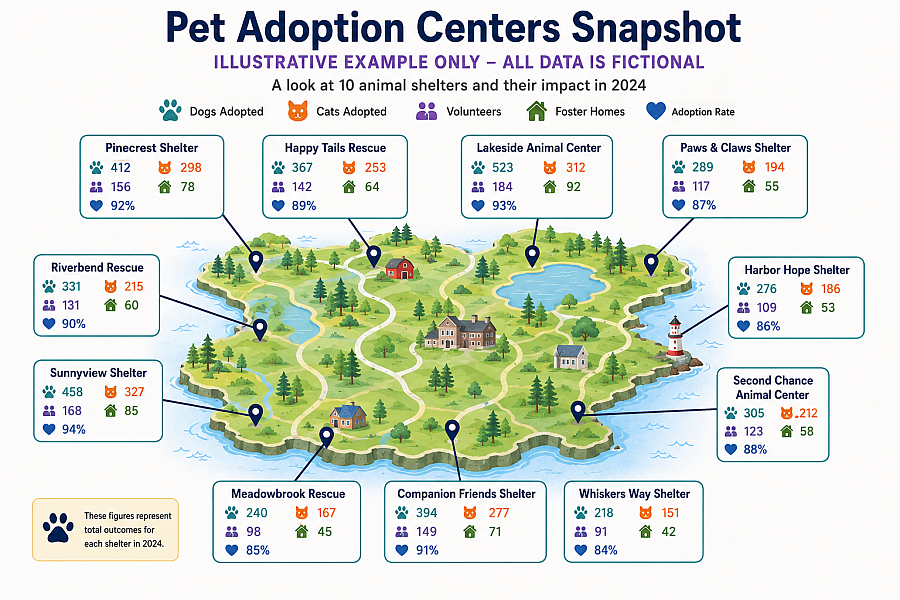
For steps to add or edit alt text in Adobe Acrobat after export, see the Images and Alternate Text In Acrobat page.