Reading Order
Reading order is the sequence in which a screen reader moves through the content of a document — and it is not always the same as what you see on screen. For a sighted reader, the eye naturally follows the visual layout of a page. A screen reader follows the underlying structure of the document, which is determined by the order in which content was placed and tagged. When those two things don't match, content reaches the listener out of sequence.
In a simple, single-column document, reading order typically matches the visual top-to-bottom flow without any extra effort. In more complex layouts — multiple columns, text boxes, images with text wrapping, tables alongside text, form layouts — reading order can diverge significantly from what a sighted user sees. Correct reading order is required under 1.3.2 Meaningful Sequence.
When reading order is wrong, content is presented out of sequence. A screen reader might read a sidebar before the paragraph it sits beside, or jump between columns in the wrong order, or read a caption before the heading it follows. The result can be incomprehensible for someone who cannot see the visual layout.
What Disrupts Reading Order
The most common causes of reading order problems in Word documents are:
- Floating text boxes that are not anchored to a specific paragraph
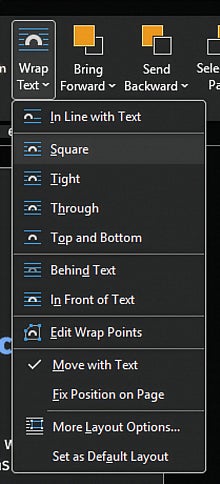
- Images set to Float rather than anchored inline or to a paragraph
- Multi-column layouts — when created using Word's built-in column feature, reading order generally exports correctly in current versions of Microsoft 365. Testing across Acrobat's Read Out Loud, JAWS, and manual tag navigation confirmed consistent correct reading order across two-column, three-column, and full-width-to-column-to-full-width layouts. The more common challenge is the authoring process itself: inserting section breaks correctly to transition between columned and full-width content requires care, and an incorrectly placed section break can cause unexpected layout behavior that may affect reading order. If you use columns, verify reading order in Acrobat after export, but do not assume problems exist without testing.
- Tables positioned beside text rather than inline with the document flow
Preventing Reading Order Problems
The most effective way to address reading order is to prevent problems in the source document:
- Set image and text box wrapping to Top and Bottom or In Line with Text rather than Square, Tight, or Behind Text — this anchors elements to the document flow rather than letting them float freely. Note: Using this setting also prevents the need to add empty lines in your document so that your text avoids images in your file.
- Anchor images and text boxes to a specific paragraph rather than the page.
- Avoid placing text boxes beside paragraph text; use Word's column feature instead if a multi-column layout is needed.
- Keep layout as linear as possible — the closer your visual layout matches top-to-bottom reading order, the less remediation will be needed.
Checking Reading Order in Acrobat
After exporting to PDF, verify reading order in Adobe Acrobat before publishing. See the Working WIth Reading Order page for steps to check and correct reading order using the Order panel and Tags panel.