Document Headings
Heading structure is the primary navigation mechanism for screen reader users. When a document has properly tagged headings, screen reader users can pull up a list of all headings in the document and jump directly to any section — the same way a sighted user might scan a page visually and jump to the section they need.
Without proper heading structure, a screen reader user must read through the entire document from start to finish with no way to skip to relevant sections. Accessible heading structure is required under 1.3.1 Info and Relationships and 2.4.6 Headings and Labels.
Use Heading Styles, Not Just Visual Formatting
Never simulate a heading by making text bold, large, or colored. Visual formatting has no structural meaning — it tells the eye that something is a heading, but it tells a screen reader nothing. Use Word's built-in heading styles (Heading 1, Heading 2, Heading 3, and so on) for all headings in your document.
Do not place heading text inside an image. A document title or section heading that exists only as a designed graphic or image — rather than as real text styled with a heading style — is completely invisible to screen readers and breaks the document's heading structure. This is most common with H1 document titles created as logos or designed title graphics, but applies to any level of heading. If a graphic version of a heading is needed for visual design purposes, it must be accompanied by real heading text in the document using the appropriate heading style
To apply a heading style in Word, place your cursor in the heading text and select the appropriate heading level from the Styles panel in the Home tab.

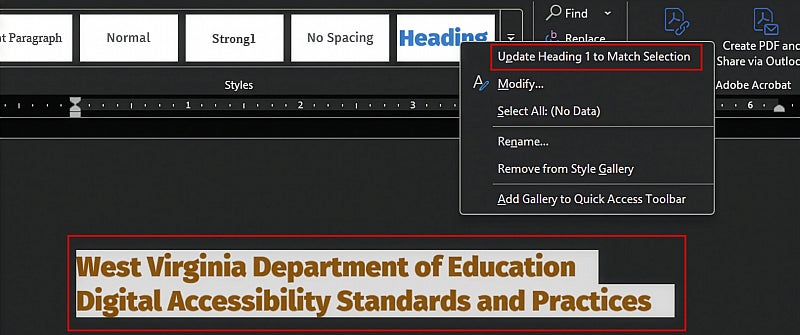
If you are working on a legacy document where headings were formatted manually but already look the way you want them to, you do not need to recreate that styling from scratch. Select the text that has the correct formatting applied, then right-click the appropriate heading level in the Styles panel and choose Update Heading [X] to Match Selection. Word will update the heading style definition to match the formatting of your selected text — from that point on, applying that heading style elsewhere in the document will produce the same appearance without any additional manual formatting.
Do Not Skip Heading Levels
Heading levels must follow a logical hierarchy. Heading 1 is the document title or top-level section. Heading 2 is a subsection under Heading 1. Heading 3 is a subsection under Heading 2. Do not skip levels — for example, do not follow a Heading 1 with a Heading 3 without a Heading 2 in between.
Skipped heading levels disrupt the document's navigational structure. Screen reader users who navigate by heading expect the hierarchy to be consistent and logical. A skipped level signals a structural problem that can confuse navigation.
Heading Levels in Practice
- Heading 1: The document title or the single top-level topic the document addresses. Use once per document.
- Heading 2: Major sections that divide the document into its primary parts. A reader scanning only the Heading 2s should get a clear sense of the document's overall structure.
- Heading 3: Subsections within a Heading 2 section. Use when a major section contains distinct enough subtopics to warrant their own navigation point.
- Heading 4 and below: Subsections within a Heading 3 section. Use only when the content genuinely requires another level of hierarchy — for example, a technical document with deeply nested subject matter. If you find yourself using Heading 4 frequently, consider whether the content could be reorganized to reduce nesting, or whether some subsections could be expressed as bold lead-in text within a paragraph rather than a heading.
Use Headings Purposefully
Headings should reflect the actual structure of your content — not be added because a section feels like it should have one. A heading creates a navigation point that screen reader users can jump to directly. If a heading does not help a user find content they are looking for, it is adding navigational noise rather than value.
Ask yourself whether a screen reader user jumping to that heading would land in the right place for what the heading promises. If the answer is no, or if the heading simply restates what the surrounding content already makes clear, consider whether it is necessary.
Avoid creating headings for single paragraphs or for content that flows naturally from the section above it without a meaningful break in topic.
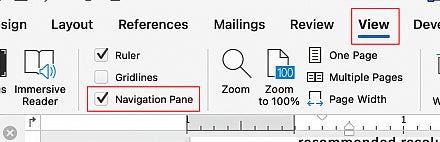
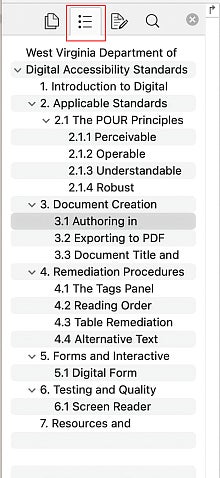
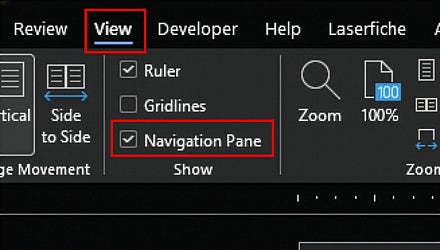
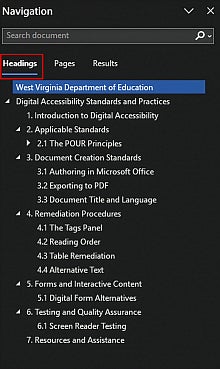
As you write, you can verify your heading structure at any time by opening the Navigation Pane in Word (View ribbon > Navigation Pane checkbox). The Navigation Pane displays your heading hierarchy in real time, making it easy to spot skipped levels, misapplied styles, or headings that are missing where they should exist before you export to PDF.
The Navigation Pane works slightly differently depending on your platform:
On PC (Windows): The Navigation Pane displays three tabs at the top of the pane — Headings, Pages, and Results. Select Headings to see your document's heading hierarchy.
On Mac: The Navigation Pane includes an icon-based toolbar. Select the Document Map icon to display the heading hierarchy.