Document Settings
Before you begin adding content to a document, a small number of document-level settings should be in place. These settings don't affect the visual appearance of your document, but they are essential for accessibility — they tell assistive technology what language to use, what the document is called, and how to understand its structure. Getting these right before you start writing is easier than correcting them later, and ensures they carry through correctly when the document is exported to PDF.
Document Title
Every PDF published on the WVDE website must have a document title set in its file properties. The document title is what screen readers announce when a user opens the file, and what appears in the browser tab when the PDF is open in a browser. This is required under 2.4.2 Page Titled.
Without a title, the filename is announced instead — which is rarely descriptive and often includes version numbers, dates, or abbreviations that mean nothing to someone who did not create the file.
Setting the Title in Word
Before exporting to PDF, set the document title in Word's file properties:
- Go to File > Info
- In the Properties panel on the right, find the Title field
- Enter a clear, descriptive title — this should describe the content of the document, not repeat the filename. For most documents, the title can be the same as the title text included on the document's cover page.
- If a title page is not available in your document, write a short title that summarizes the main topic of the file.
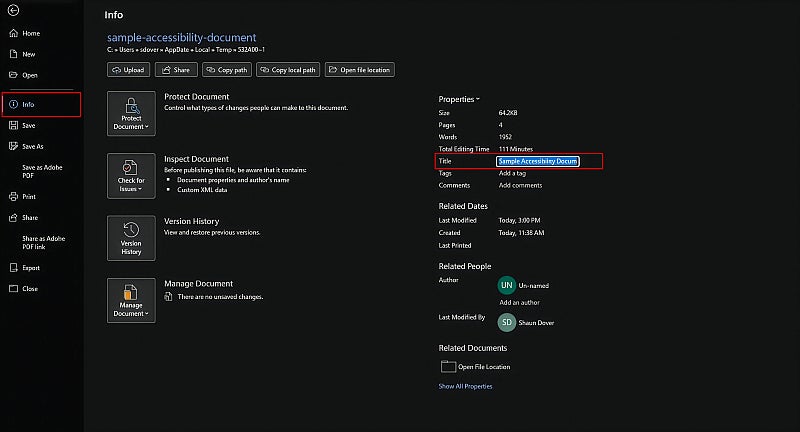
The title set here will carry through to the PDF on export. If the title is missing or incorrect in the exported PDF, it can be set in Adobe Acrobat — see the PDF Document Settings page for steps.
Document Language
The document language tells screen readers which language rules to apply when reading content aloud. Without a language setting, screen readers may default to the user's system language — which may produce incorrect pronunciation for content in a different language, or simply fail to apply the correct reading rules.
Setting the document language is required under 3.1.1 Language of Page (WCAG 2.1 Level A) — it is not optional.
Setting Language in Word
- Go to Review > Language > Set Proofing Language
- Select the appropriate language from the list
- Ensure Do not check spelling or grammar is not checked unless intentional
- Click OK
For documents that contain sections in a different language than the rest of the document, those sections can be selected and assigned a different language using the same process.
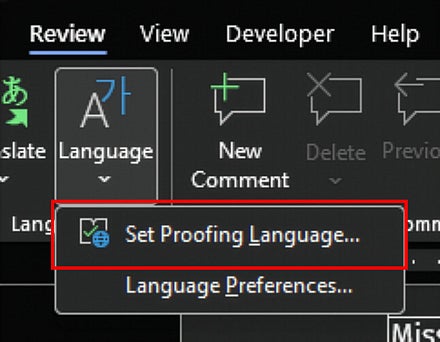
If the language is missing or incorrect in the exported PDF, it can be set in Adobe Acrobat — see the PDF Document Settings page for steps.
Headers, Footers, and Page Numbers
Headers and Footers
Headers and footers in Word are typically treated as artifacts when the document is exported to PDF — meaning they are tagged as background elements that screen readers skip rather than read. This behavior is intentional; repeating the same information on every page of a document is unnecessary for most readers.
If content in your header or footer is important enough to communicate to all users — not just as a visual reference — that content should appear at least once in the body of the document as well, not exclusively in the header or footer.
If you do use headers or footers, verify after export that they are correctly artifacted in the PDF. Headers in particular sometimes require manual remediation on the first page. See the Special Accessibility Cases page if corrections are needed.
Page Numbers
Page numbers added through Word's built-in page numbering feature are generally exported as artifacts — background elements that screen readers skip. This is the correct behavior and does not require remediation.
Screen readers communicate page position through the document's page count rather than visible page numbers, and users can navigate by page number using their screen reader's built-in go-to-page functionality. Visible page numbers are primarily useful for print versions of documents and for sighted users referencing specific pages.