Creating Accessible Tables
Tables are one of the most common sources of accessibility issues in published documents. A table that looks correct visually may be completely unusable for someone navigating with a screen reader if its underlying structure is missing or incorrect.
Use Tables for Data Only
Tables should only be used for data that has a meaningful relationship between rows and columns. They should never be used to control the visual layout of a page — for positioning text side by side, creating columns, or organizing content that is not genuinely tabular.
If you are unsure whether your content belongs in a table, ask whether each cell's meaning depends on its row and column position. If it does, a table is appropriate. If the content could be presented as paragraphs or a list without losing meaning, a table is probably not the right choice.
Do not use tables to create headers or footers in Word documents. Headers and footers should use Word's built-in header and footer feature, or be omitted in favor of page content.
Table Anatomy
An accessible table has clearly defined structure that screen readers can interpret:
- Header row: The first row of a table should contain column headers that describe the data in each column. In Word, mark this row using Table Properties — this ensures the headers transfer correctly to the PDF on export.
- Data cells: All other cells contain the actual content of the table. Each data cell's meaning should be clear in the context of its column and row headers.
- Scope: Scope defines whether a header applies to a column or a row. It cannot be set in Microsoft Office and must be assigned in Adobe Acrobat after export.
- Caption: For complex tables, a brief caption describing the table's content helps all users understand what they are looking at before reading the data.
Keep Tables Simple
Merged cells are one of the most common sources of table accessibility problems. When cells are merged — particularly when a merged cell is used to label a section of data within a larger table — screen readers lose the ability to correctly associate header and data relationships.
The examples below show the same data presented both ways — expand each to see how the structure differs and why it matters.
Column Headers in Word
In Word, the table's header settings are applied from the Table Design ribbon. These settings control both how the table looks and how it is tagged when the file is exported to PDF:
- Click anywhere in the table
- Select the Table Design tab on the ribbon
- In Table Style Options, check Header Row so the first row is treated as the column headers
- If the first column labels each row (for example, a name or category), also check First Column so those cells are treated as row headers
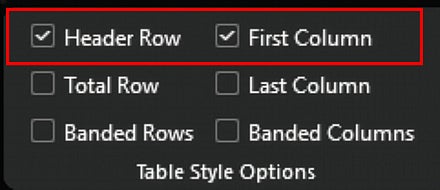
Header Row and First Column are the settings that identify header cells. Every table with headers needs them, whether it is two rows or two hundred.
Repeating the Header Row on Each Page
Repeating the header row is a separate setting with a different purpose. If a table is long enough to run onto another page, it reprints the header row at the top of each new page, which helps sighted readers keep their place. It does not mark the row as a header; that is done by Header Row above.
- Click anywhere in the header row
- Right-click and select Table Properties
- Select the Row tab
- Check Repeat as header row at the top of each page
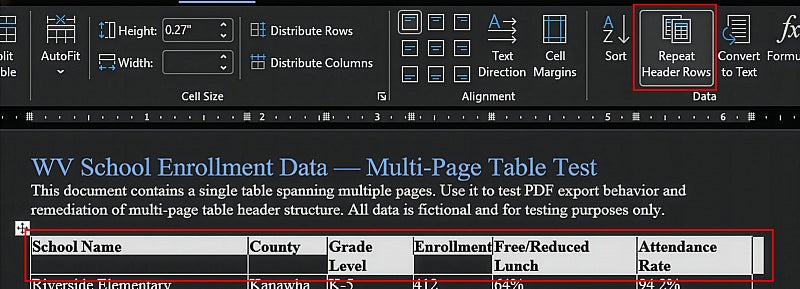
This setting only has an effect when a table spans more than one page; short tables that fit on one page are unaffected. Each repeated row is exported as an additional header row in the PDF, which has to be handled during remediation. See Multi-page tables and repeated header rows below and the Multi-page tables section on the Tables in Adobe Acrobat page.
For tables that are verified or corrected in Adobe Acrobat after export, see the Tables in Adobe Acrobat page for steps to set table headers and scope using the Reading Order panel.
Other Common Table Issues
The following table issues are best demonstrated with screenshots in the context of the specific tool where they are addressed. See the linked sections for step-by-step guidance.
Tables used for layout: Using a table to position text or images side by side, rather than for actual data, adds structural complexity to the PDF and often causes reading order problems. For multi-column text, use Word's column feature instead. For images, place them inline with the text rather than in a layout table.
Row headers and scope: Some tables have meaningful labels in the first column as well as the first row — for example, a table where both the row and column position determine a cell's meaning. In these cases, the first-column cells need row scope applied, which cannot be set in Word and must be done in Adobe Acrobat after export. See the Tables in Adobe Acrobat page for steps to set row and column scope using the Table Editor.
Multi-page tables without repeating headers: When a table spans multiple pages, enabling the header row to repeat at the top of each page provides visual users with column context without having to flip back to the first page. This is a visual aid set in Word's Table Properties and does not itself address the accessibility structure of multi-page tables in the exported PDF. For guidance on how multi-page tables should be structured and remediated for accessibility, see the Multi-Page Tables section of the Tables in Adobe Acrobat page.