Table Of Contents (TOC)
A table of contents (TOC) provides navigational structure at the beginning of the document and helps all users — including screen reader users — understand what the document contains and jump to specific sections. A TOC is not an accessibility requirement, but it is a useful navigational aid for longer documents or documents with multiple distinct sections. Whether to include one depends on the document's length, purpose, and audience.
Use Word's Automatic TOC
Always use Word's built-in table of contents tool rather than creating one manually. A manually typed TOC has no link relationship between the entries and the sections they refer to — it looks correct but provides no navigational value in the PDF.
Word's automatic TOC generates entries from your heading styles and creates hyperlinks that transfer to the PDF on export. When a user clicks a TOC entry in the PDF, they are taken directly to that section.
To insert a TOC in Word:
- Place your cursor where the TOC should appear (typically after the title and before the first section)
- Go to References > Table of Contents
- Select one of the built-in automatic styles
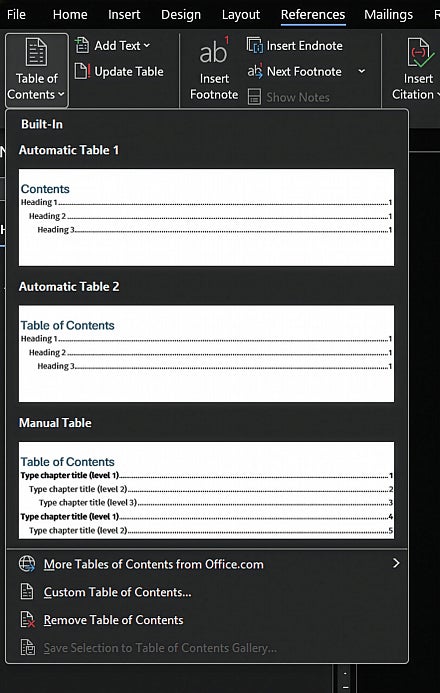
When using the automatic styles, heading levels one, two, and three are automatically chosen to populate the TOC.
- If you see any irregularities in the items in your TOC, review your document for text that has incorrectly been styled as a heading — likewise, text that has not been styled using the correct heading level based on the structure of your document.
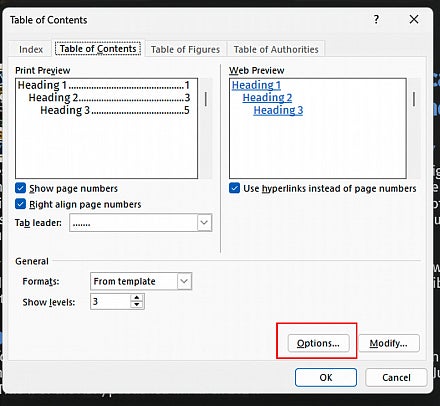
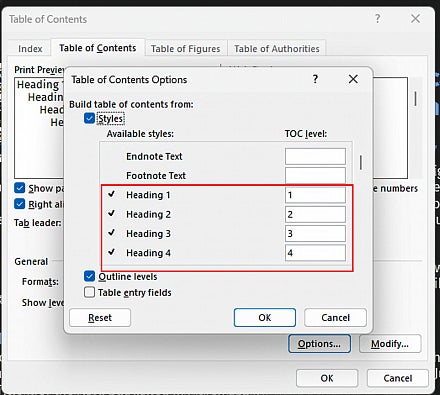
- If you want to customize the TOC for either appearance or the specific heading levels used to populate it, choose Custom Table of Contents from the TOC dropdown, then select Options and use the TOC Level boxes to specify both the structural elements used to build the TOC and the level at which each element appears.
Update the TOC before exporting to PDF — go to References > Update Table and choose Update entire table to ensure page numbers and entries are current.
After exporting, verify that TOC links work correctly in the PDF by clicking several entries to confirm they navigate to the correct sections.