Exporting to PDF
How you create your PDF matters as much as what is in it. The export method determines whether the accessibility work you put into your Word document carries through to the finished file. This page covers the correct export method and what to check before and after creating your PDF.
Creating Your PDF
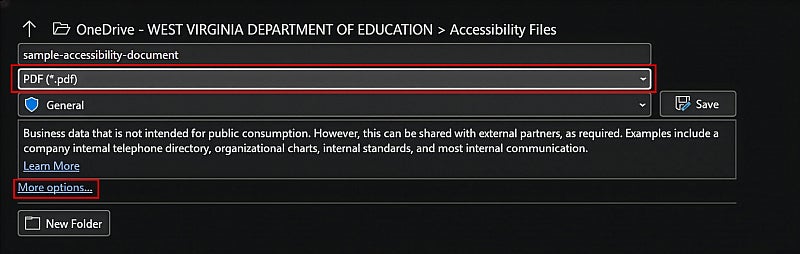
Always use File > Save As > PDF to export your document. Never use Print to PDF.
Printing to PDF creates a visual copy of the document with no structural information. Every accessibility feature you have built into the source document — heading styles, alt text, table structure, list formatting, language settings — is stripped out. The result looks correct on screen but is essentially untagged, making it inaccessible to screen readers and extremely difficult to remediate in Adobe Acrobat.
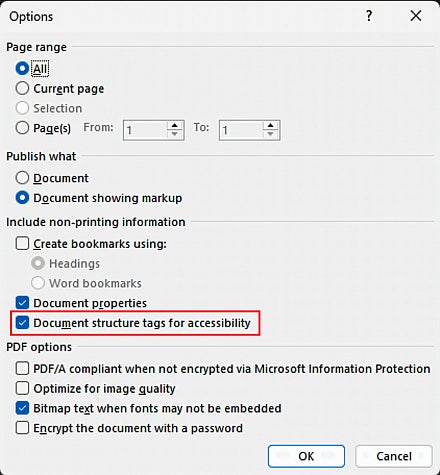
Before saving, select Options and ensure Document structure tags for accessibility is checked.
Before You Export
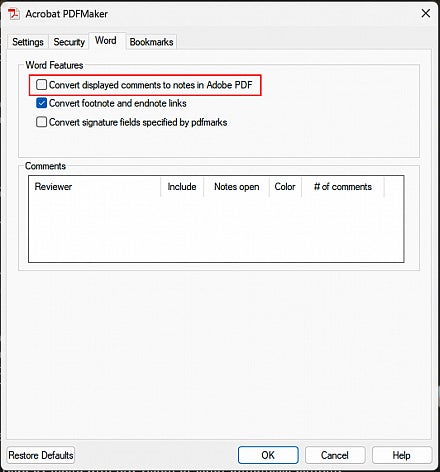
Dismiss all comments in the Word document before exporting: go to Review > Delete > Delete All Comments in Document. Unresolved comments may be exported as annotation notes in the PDF that can be difficult or impossible to remove and may be flagged by accessibility checkers even when nothing appears visible in the document.
After Exporting
Before beginning remediation in Acrobat, use the PDF Creation Checklist to confirm the export completed correctly and that document-level settings are in place. See the PDF Creation Checklist page.
Building an accessible PDF form?
If you came here from the forms section, pick up where you left off.