Creating Links
Links connect readers to other documents, web pages, and resources. Creating them correctly in Word ensures they export to PDF with the right structure and behavior.
Inserting a Hyperlink
To insert a hyperlink in Word:
- Select the text you want to use as the link
Press Ctrl+K, go to Insert > Link on the home ribbon, or select text in your document, right-click, and select Link
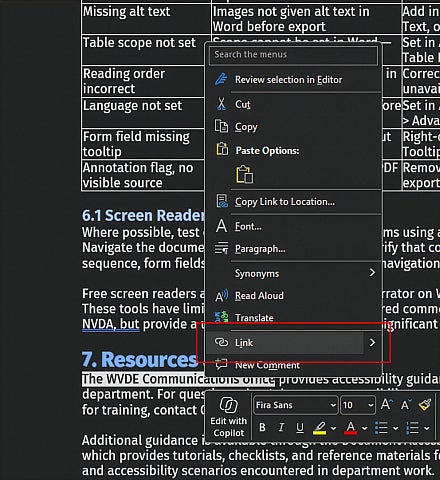
- In the Insert Hyperlink dialog, the selected text appears in the Text to display field — this is the link text readers will see
Choose the link type from the left panel:
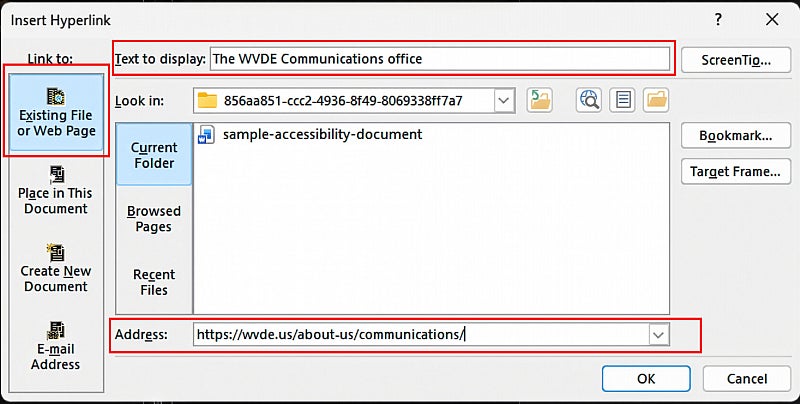
- Existing File or Web Page — for URLs and web addresses. Enter or paste the URL in the Address field
- E-mail Address — for email links. Enter the email address and Word will automatically format it as a mailto: link
- Click OK
Email Links
To create an email link, select E-mail Address in the link type panel. Enter the recipient's email address in the E-mail address field — Word will automatically add the mailto: prefix. You can also enter a pre-filled subject line in the Subject field if needed.
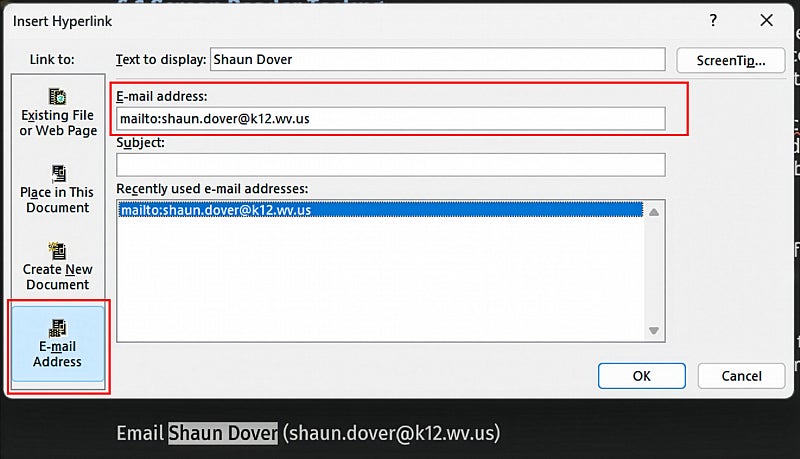
For a discussion of mailto: link syntax and how email links behave in PDFs, see the Working with Links In Adobe Acrobat page in the Remediation in Adobe Acrobat section.
Write Descriptive Link Text
Descriptive link text is one of the most impactful accessibility practices and one of the easiest to get right. Screen reader users frequently navigate documents by jumping between links, so link text must describe the destination or purpose clearly enough to make sense out of context — if every link says "click here" or "read more," that navigation is useless.
Avoid: Click here, Read more, Learn more, This document, See also
Use instead: Download the 2024 Annual Report, West Virginia Board of Education Policy 2510, WVDE Graduation Requirements
The link text does not need to be long — it needs to be specific. "View the Title I funding guidelines" is better than "Click here to view the Title I funding guidelines on the federal website."
Add ScreenTips for Additional Context
Word allows you to add a ScreenTip (tooltip) to any hyperlink. ScreenTips appear when a user hovers over a link and are announced by some screen readers as additional context.
Use ScreenTips to provide format or size information that would not fit naturally in the link text itself — for example, noting that a link opens a PDF or that a file is large.
To add a ScreenTip in Word: right-click the link, select Edit Hyperlink, then click ScreenTip and enter your text.
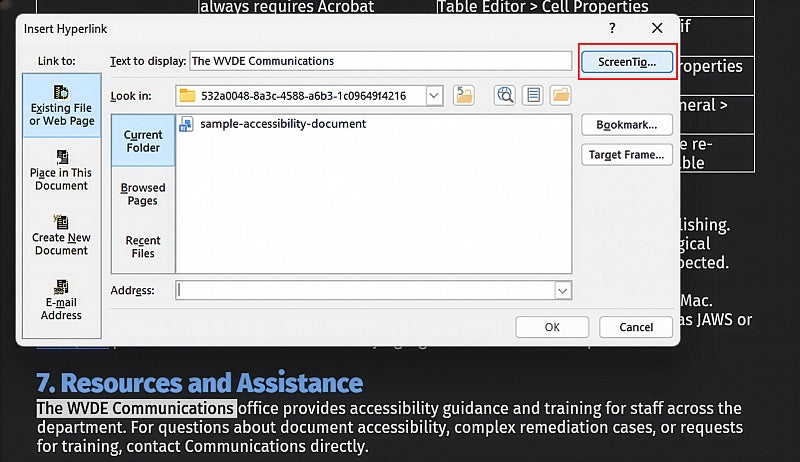
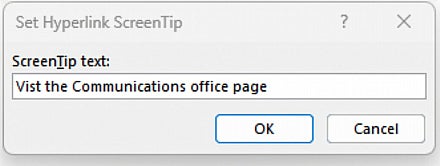
For email links, use the ScreenTip to identify who the email goes to — for example, "Email John Smith" or "Email the Communications Office."
When to Show Full URLs
In documents intended primarily for on-screen reading, do not display full URLs as link text. A URL like https://wvde.us/about-us/communications/digital-publishing read aloud by a screen reader provides no useful information and interrupts the reading experience. instead, include some text in your document that references the destination of the URL (like For more information, see Digital Publishing, or Digital Publishing is the best) and use the word(s) for the link text.
In documents that will be printed — handouts, reference sheets, or forms — including a visible URL gives readers a way to access the link without a screen.
When a full URL is displayed in a document for print purposes, mark it as an artifact in Adobe Acrobat so it is not read aloud to screen reader users accessing the digital version. See the Images and Alternate Text in Acrobat page for steps to mark content as an artifact.