Mathematical Equations And Formulas
Mathematical equations and formulas present a specific accessibility challenge. Equation editors and formula builders do not reliably produce accessible output in PDF format, and attempting to describe a complex equation in alt text alone is rarely effective.
The recommended approach is:
- Include an image of the equation rendered clearly and at sufficient size to be readable
- Follow the image with a plain-language explanation of what the equation represents and how it works, written in the document body
This approach gives sighted users a clean visual representation of the equation and gives screen reader users a meaningful explanation of its content and purpose. The alt text on the equation image should briefly indicate that an explanation follows.
Example alt text: "Formula for calculating compound interest. Explanation follows this image."
The plain-language explanation does not need to be a mathematical description of every term. Its purpose is to make the equation's meaning accessible — what it calculates, what the variables represent, and how it is used.
Word's Equation Editor and Screen Reader Support
Word's built-in equation editor (Insert > Equation) exports equations as Formula tags in the PDF, and includes alt text — this is the correct structural output. However, screen reader support for these tags is not universal. JAWS and NVDA (with the MathPlayer plugin) can parse equation content from Word's equation editor; other screen readers may not handle it reliably.
What this means in practice:
- If your audience is likely using JAWS or NVDA with MathPlayer, equations built with Word's equation editor may be accessible without additional steps
- If your audience uses other screen readers, or if you cannot verify which assistive technology they use, the image and explanation approach provides a more reliable fallback
- When using the equation editor, verify your output by testing with the target screen reader before publishing — do not assume Formula tag output is sufficient without testing
For documents where you cannot confirm screen reader compatibility, the image and explanation approach remains the safer choice.
More accessible equation workflows — such as MathML-based approaches — require tools outside the scope of this guide. If your document contains complex mathematical content, contact the Communications office for guidance.
Operators and Simple Fractions in Running Text
When mathematical content appears within regular paragraph text rather than as a standalone equation, the characters you use matter. Screen readers do not always interpret mathematical symbols correctly, and some common substitutions that look fine visually are read incorrectly or ambiguously.
Multiplication and division operators:
Do not use the letter "x" as a multiplication sign in mathematical context — screen readers will read it as the word "ex," not "times." Use the correct Unicode multiplication sign (×) instead.
Do not use a forward slash "/" as a division sign when writing a mathematical operation — it may be read as "slash" rather than "divided by." Use the division sign (÷) or write the operation out in words.
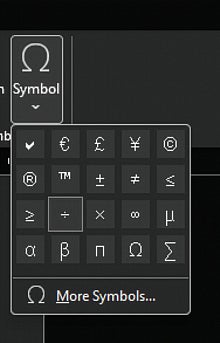
To insert the correct operator characters in Word, go to Insert > Symbol > More Symbols. In the Symbol dialog, change the Font dropdown to a standard font available on your workstation — such as Arial or Calibri — to access standard Unicode characters.
Locate the desired mathematical symbol (multiplication sign, division sign, etc), select it, and click Insert. Once a character has been inserted this way, it will appear in the Insert > Symbol dropdown for quick reuse in future sessions without reopening the full dialog. You may also copy the symbol once used once in your document, and paste it in additional locations as needed.
Fractions in running text:
Fractions embedded in paragraph text can be misread by screen readers depending on how they are formatted. The most reliable approaches are:
- Write the fraction out where context allows: "one-half," "three-quarters," "two-thirds"
- Use Unicode fraction characters for simple common fractions where a written form would be awkward: ½, ¼, ¾ — these are read correctly by most screen readers
- Compound fractions (a whole number combined with a fraction, such as 3½ or 2¾) are a specific exception — screen readers handle the transition between the whole number and the fraction character inconsistently, and may read them incorrectly or unpredictably. Always write compound fractions out ("three and one-half") or use a decimal equivalent where context allows ("3.5")
- Avoid using the equation editor to format a fraction that appears inline in a sentence — the fraction will not export accessibly from Word to PDF
- Avoid stacked fractions typed manually using superscript and subscript formatting — these are read as separate unrelated numbers
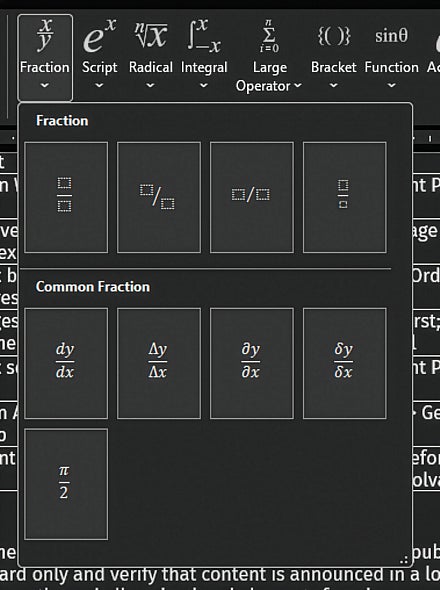
To insert a fraction in Word, use Insert > Equation > Fraction and click the type of fraction that you would like to build.
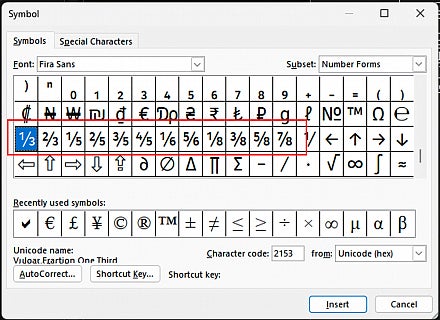
Alternatively, choose Insert > Symbols > More Symbols, and choose the desired fraction from the list of special characters available in the fonts installed on your workstation.
For fractions that cannot be expressed as a simple Unicode character or written form, use the image and explanation approach described above, treating the fraction as you would a complex equation.